
Use 1080 × 1920 pixels at 9:16 as a practical TikTok video master. It's a useful vertical canvas for product clips, talking-head videos and app demonstrations. It isn't the minimum accepted resolution for every upload route, and it doesn't make every frame automatically readable.
Three checks finish the job: match the uploader's requirements, compose for the intended placement, and inspect the exported video in motion. TikTok Studio, connected publishing tools and paid ads can accept different files even when you start from the same master.
A real 1080 × 1920 example: follow the can, not just the border
The peach-can clip below is an existing Advibly-generated creative at the recommended 9:16 master size. Compare the beginning, moving middle and final hold. The can stays central, but the water, leaves and paper backdrop travel through the frame. A clean opening does not certify the rest of the clip.
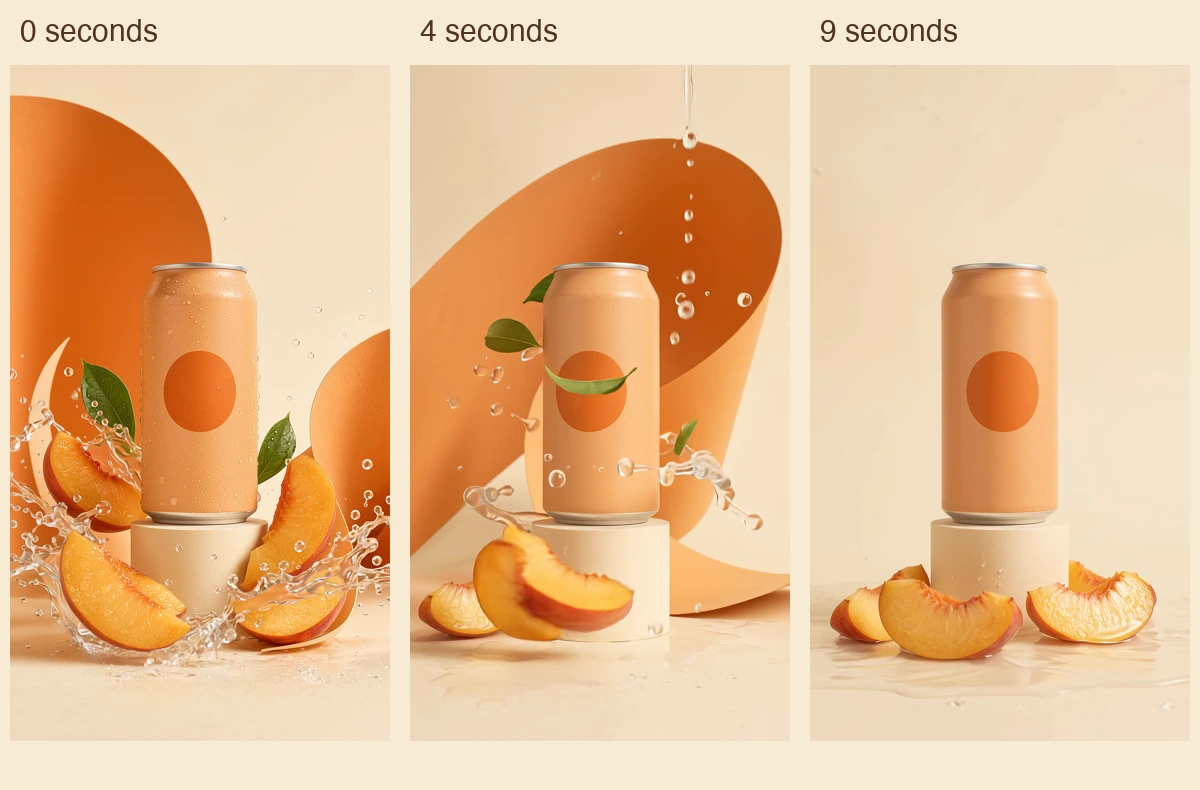
Actual frames from the existing 1080 × 1920 animation at 0, 4 and 9 seconds. Picture unchanged; audio removed for this example. No TikTok interface or campaign-performance result is shown.
Watch the 10-second peach-can animation (silent MP4)
This is deliberately surreal, unbranded concept art, not a beverage demonstration or TikTok-approved ad. The source requested no speech but contained generated speech; this linked editorial copy removes audio without changing the video stream. It is therefore not a ready-to-run sound-required ad placement.
Key takeaways
- Use 9:16 for a vertical composition; don't stretch a wide source to fill it.
- Check the exact route's file size, duration and format limits.
- Use official ad overlays for the matching ad configuration, not as universal organic-post templates.
- A cover frame, a full video and a published post each need their own check.
TikTok video size: the route changes the limits
The 1080 × 1920 recommendation is a production choice. TikTok's performance-ad creative guidance recommends vertical 9:16, at least 720p, sound and attention to interface-safe placement. That is ad guidance, not one universal acceptance table for the entire product.
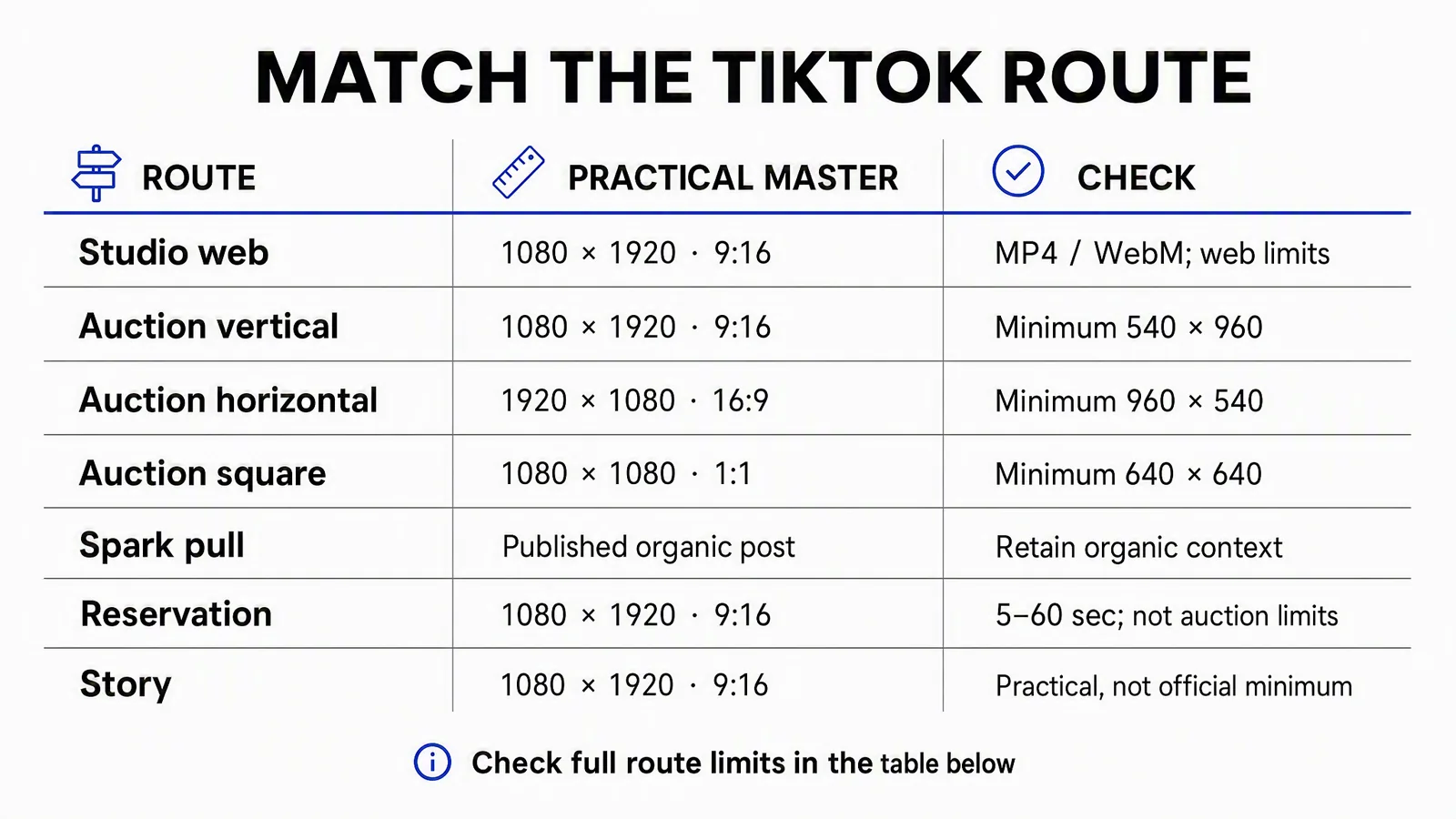
Practical master and upload minimum are different columns. “Reservation” here means the non-Spark/Spark Push duration row, not Spark Pull. Connected publishing APIs add another route, explained below.
|
Upload or placement |
What to check |
|---|---|
|
TikTok Studio web |
Published support guidance lists MP4/WebM, at least 720 × 1280, up to 30 minutes and under 10 GB. This is not an app-wide or API-wide limit. |
|
Auction non-Spark, vertical |
Recommended 9:16; minimum 540 × 960. |
|
Auction non-Spark, landscape |
16:9; minimum 960 × 540. |
|
Auction non-Spark, square |
1:1; minimum 640 × 640. |
|
Auction non-Spark, all three shapes |
Maximum: 10 minutes and 500 MB. Check the linked spec for formats and bitrate. |
|
Spark Pull |
Existing organic post; no additional auction duration restriction. That doesn't grant unlimited organic uploads. |
|
Reservation non-Spark/Spark Push |
5–60 seconds, at most 500 MB, bitrate at least 2,500 kbps; MP4/MOV/MPEG/3GP. Vertical 9:16 is recommended. |
|
TikTok Story |
1080 × 1920 is a practical choice. The reviewed Story support guidance describes photo/video sharing, not a separate mandatory pixel table. |
Landscape composition, not a wide stretch
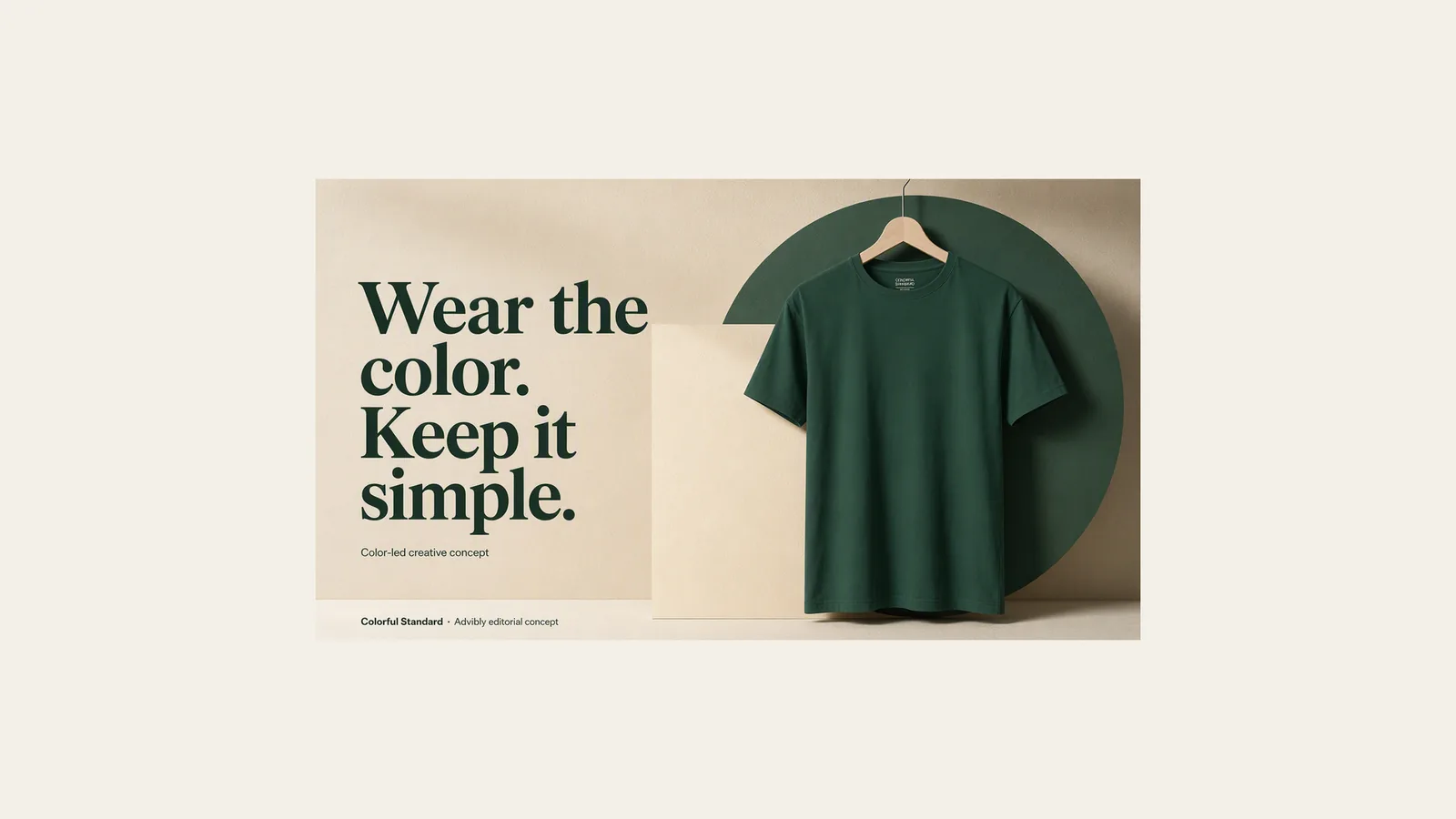
This is an actual 1920 × 1080 image export. It illustrates the landscape frame only—not a complete, sound-checked TikTok video or approved ad.
Square composition
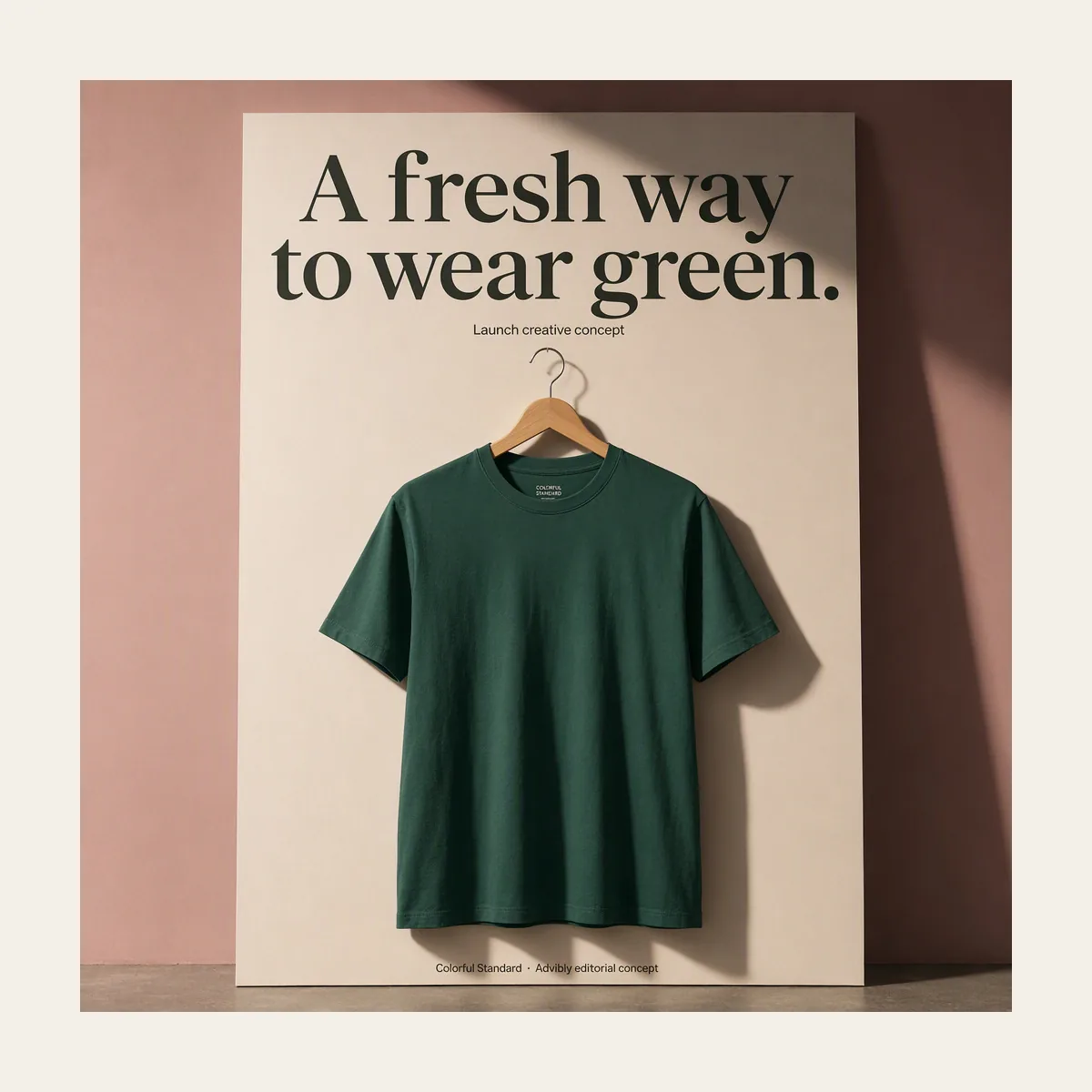
The 1200 × 1200 square poster is a separate native concept, proportionally exported. Use actual motion and audio when the selected ad route requires them.
Sources: TikTok Studio support, auction In-Feed specifications, reservation specifications and Stories support. Reviewed September 12, 2026; the support-page text was available through indexed copies, while direct retrieval was restricted. Confirm the active uploader when operating near a limit.
For reservation ads, don't stop at dimensions: the same specification requires sound. A silent illustrative clip in this guide is therefore not a ready-to-run reservation ad. Spark Pull also requires the correct organic-post and authorization workflow, not just a file with the right extension.
Play the actual motion exports
The same original Advibly-generated cube character arranges three spheres in these six-second films. Each canvas is composed separately around the complete landscape action, with proportional scaling and no stretched objects. These are silent editorial ratio specimens, not uploaded campaigns or platform-acceptance tests.
Landscape: 1920 × 1080
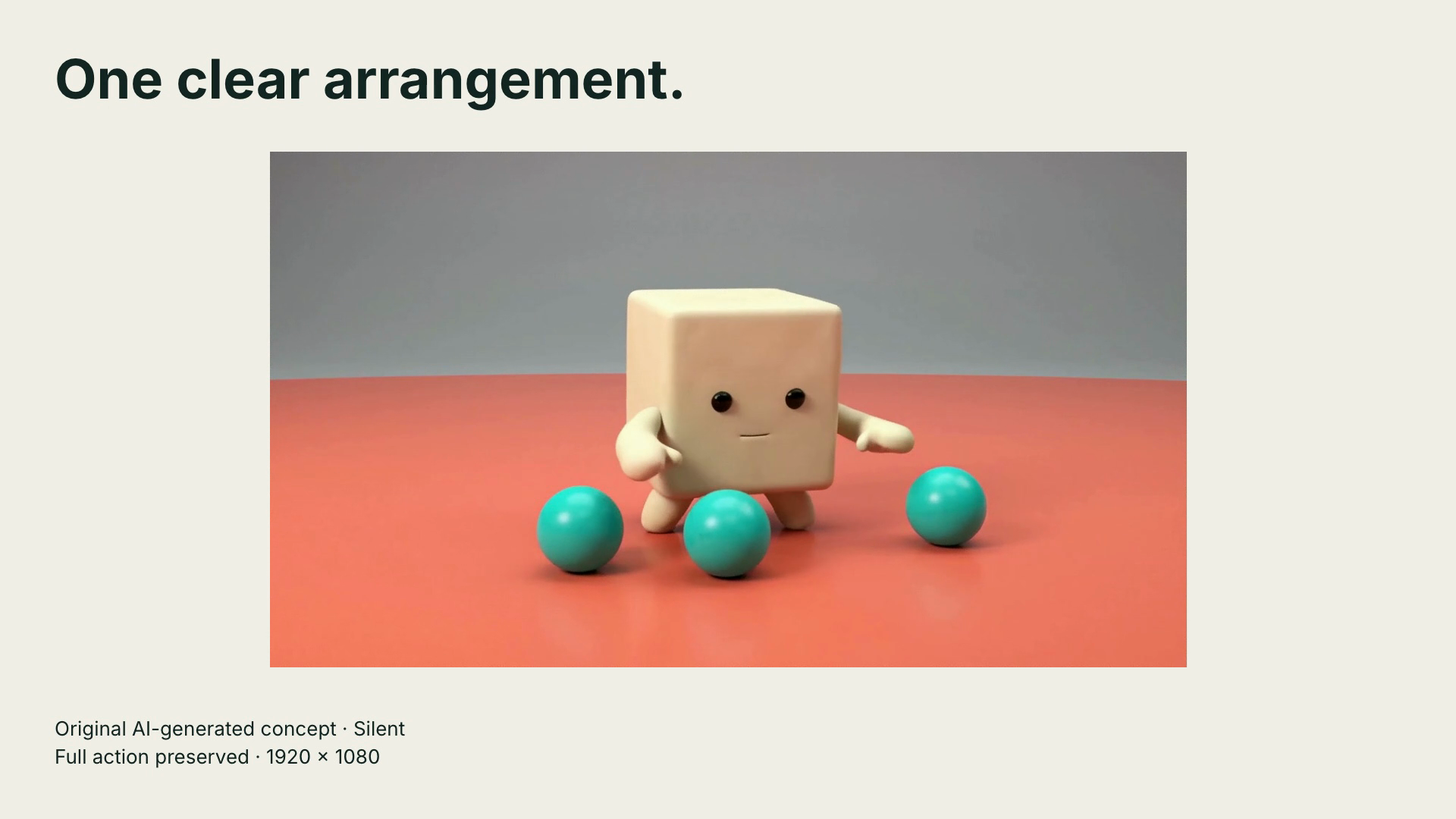
Open the complete 1920 × 1080 motion specimen (six seconds, silent MP4)
Square: 1080 × 1080

Open the complete 1080 × 1080 motion specimen (six seconds, silent MP4)
Vertical: 1080 × 1920
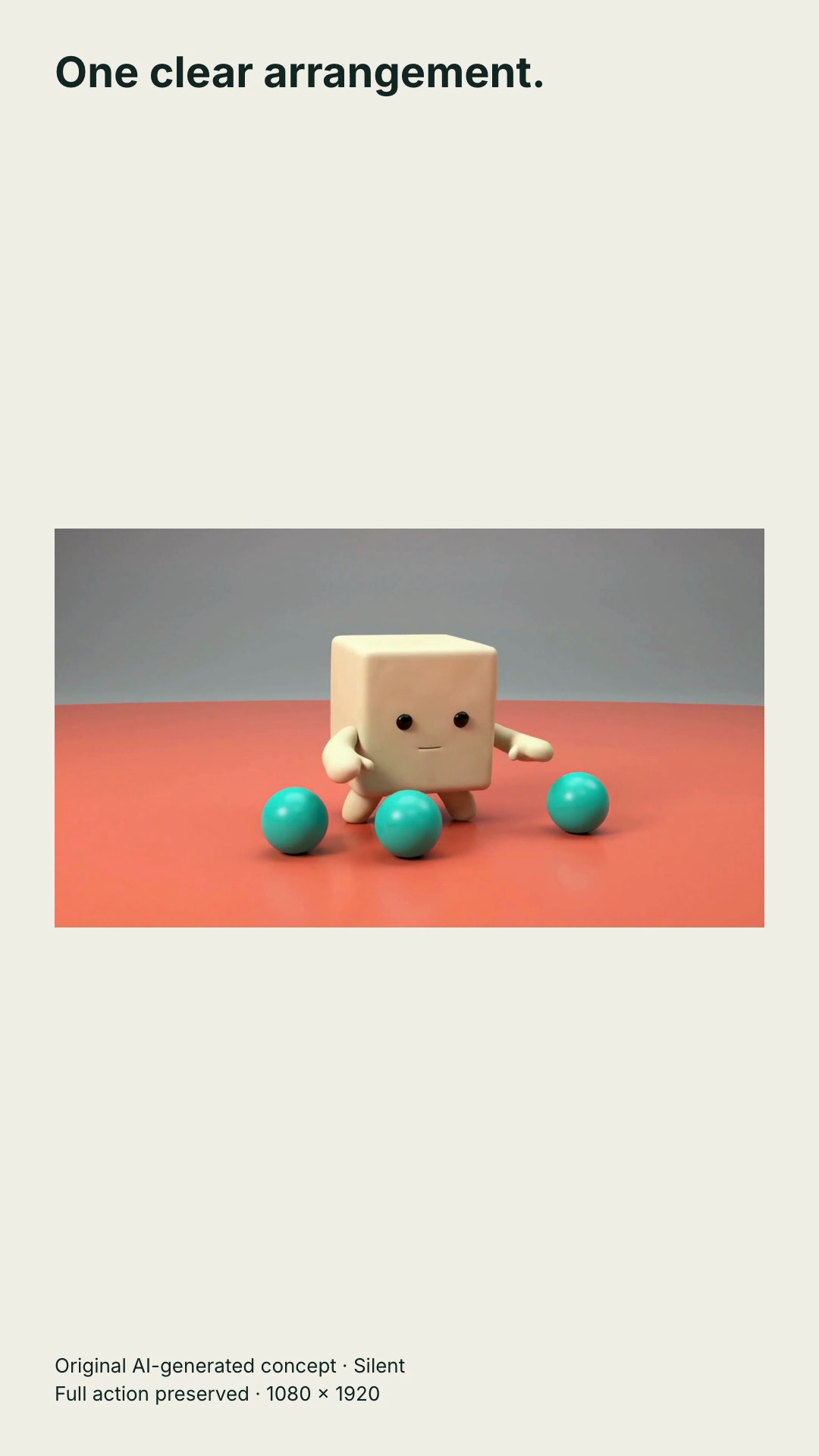
Open the complete 1080 × 1920 motion specimen (six seconds, silent MP4)
Input: one 1280 × 720 landscape film. Change: preserve its full field of view while placing the headline and disclosure outside the action. To reproduce, fit the footage uniformly inside the chosen canvas, leave room for the text, and play the exported file from start to finish. Check the spheres at both sides before deciding that a tighter crop is harmless. Increasing export dimensions does not create extra source detail.
Containment deliberately leaves more open space in portrait. It preserves this wide action; it is not a claim that this is the strongest feed creative. Choose a dedicated vertical shot when filling the frame matters more. The files have no audio track. Add and review appropriate sound if the selected placement requires it, and inspect the real uploader preview separately.
Publishing through a connected tool is another route
Opening a scheduler in a desktop browser doesn't mean it uploads through TikTok Studio. TikTok's Content Posting API media guide, updated August 4, 2026, lists MP4, WebM and MOV, recommends H.264, allows 23–60 fps, and gives a 4 GB maximum file size. Its height and width boundaries are 360–4096 pixels each.
Duration also depends on the account and operation. The creator-information reference exposes the current account's maximum post duration; it explicitly tells developers to use that value to prevent overlong posts. Don't take a Studio limit and paste it into an API-connected publishing brief.
For a short vertical campaign, a sensible working export is MP4 with H.264, 1080 × 1920 and 30 fps, provided the selected route accepts it. This is a practical preset, not a guarantee of acceptance or a requirement to convert every good source to 30 fps. Keep the original edit available if the uploader reports a different constraint.
What 9:16 tells you, and what it doesn't
Aspect ratio describes shape. 1080 ÷ 1920 = 0.5625, the same width-to-height ratio as 9 ÷ 16. A 720 × 1280 clip has that same shape at a smaller resolution.
Scaling 720 × 1280 to 1080 × 1920 increases each dimension by 1.5 and the pixel count by 2.25. It doesn't recover missing source detail merely because the output file has more pixels. If fine packaging text is already unreadable, improve the source or shot rather than relying on an export setting to reconstruct it.
Use the measured file, not the generator setting
The retrieved motion file is 1080 × 1920, H.264 at 24 fps, with about ten seconds of picture. Those are observed properties, not a claim that every model returns them. The still used for its visual direction is 1152 × 2048: the same 9:16 shape, a different pixel count.
For your own product, select the genuine product image in Advibly, use the supported image-to-video route, set the intended ratio and motion, and inspect the result before export. A requested setting is not a substitute for opening the file.
Use the right safe-zone check
The paid In-Feed specification supplies standard/anchored and LTR/RTL overlays. Canvas, captions and added formats affect placement; its preview isn't device-specific.
For an organic post or Story, inspect that route's actual preview and interface. Don't assume an ad overlay is its official template. If you create a private working overlay from an observed preview, label the account context, device, capture date and display configuration. It's a record of that observation, not a permanent platform specification.
“Apply an overlay” means use it as a guide while editing and reviewing. Remove the guide from the exported video. The audience should see the creative, not a debug rectangle or a copied interface diagram.
Apply the overlay to the motion, not the poster
Suppose you want to adapt this can concept for a vertical auction non-Spark ad. That is a proposed placement, not one already uploaded. Choose the actual caption, language direction and any anchor first; download the matching overlay from the official specification linked above.
In the middle frame, moving leaves pass in front of the can's circle. If that were a real product label that had to remain visible, change the motion request or reject the shot. Moving the opening-frame title would not fix it. At the final hold, the empty upper region could accommodate concise creative text, but test that position against the actual interface before adding it.
Use a guide only while designing. Remove it from the export. No fixed rectangle in this article certifies every organic post, device or ad configuration.
Recompose a wide source without distorting it
You have three useful options: crop to the important subject, retain the whole source inside a designed vertical layout, or make a dedicated vertical shot. Choose based on what the viewer must see.
Consider a hypothetical 1920 × 1080 screen recording. Fit its full width into a 1080-pixel-wide vertical master and the screen becomes 607.5 pixels high before rounding. The 1920-pixel-high canvas then has 1312.5 pixels of remaining vertical space. That's a composition problem, not a reason to stretch the interface.
You could place a readable heading above the screen and a close-up of the relevant control below it. Or show the full screen briefly for orientation, then cut to a real detail capture. If tiny UI text remains unreadable, remove unnecessary content or choose a closer recording. A blurry background fill can occupy space, but it doesn't make the evidence-bearing screen bigger.
For a product shot, preserve the product's proportions and label. For a person, avoid a crop that loses the gesture the script refers to. A canvas filled edge to edge is not automatically a better explanation.
File size is more than resolution
Two videos with identical dimensions can have very different file sizes. Duration, bitrate, audio and encoding settings all matter. Higher resolution alone doesn't tell you the number of megabytes.
For planning, approximate file size in decimal megabytes as total bitrate in megabits per second × seconds ÷ 8. If the combined audio/video bitrate averages 8 Mbps for a 20-second clip, the media data is about 20 MB before container overhead. Variable bitrate makes this an estimate; inspect the actual exported bytes.
Don't use an ad's minimum bitrate as a universal quality preset. Export from the clean edit, review gradients, motion and small text, and compress only as much as the destination requires. Repeatedly re-encoding an already compressed download can compound visible damage.
Fix the symptom instead of guessing a new size
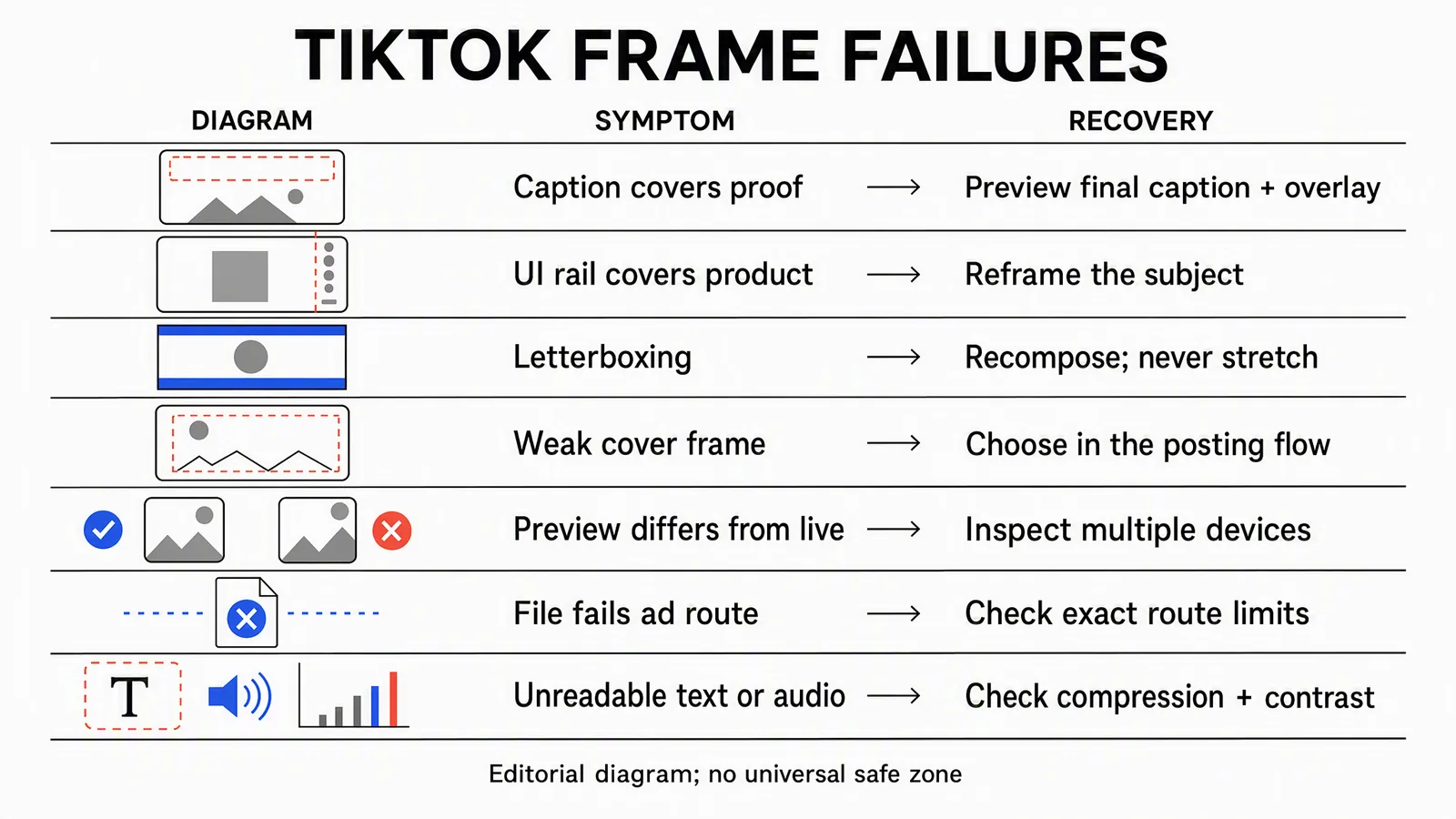
Schematic symptoms, not TikTok UI captures or exact obstruction coordinates. An intentionally framed wide video can be valid; fix empty space only when it weakens the composition.
|
Symptom |
Next check |
|---|---|
|
Caption covers the claim |
Review the final caption and placement configuration; move or shorten the creative text. |
|
Product hits the action rail |
Inspect the entire motion path and change framing, not only the cover. |
|
Borders dominate the video |
Decide whether the wide source needs a designed vertical layout or a dedicated edit. Never stretch it. |
|
File is rejected |
Read the route's reported size, duration, format or account restriction before re-exporting. |
|
Cover looks weak |
Pick a stable, representative frame and inspect it at small size. |
|
Audio or text is unclear |
Check levels, caption accuracy, contrast and compression separately. Changing canvas size doesn't solve every failure. |
Select the cover after the edit is stable
TikTok's posting guidance describes selecting a video frame as the cover before posting. It identifies the cover as the thumbnail shown in places such as the profile and search results.
Pick a moment that represents the clip without needing sound. Avoid a blink, transition, changing generated shape or half-visible label. If you cut time from the beginning later, revisit the cover selection: the same timestamp can now point to a different frame. A custom-thumbnail control in one uploader doesn't prove every connected tool exposes that control in the same way.
Build and schedule the vertical creative in Advibly
Start with the correct brand library, product page, real app screens or approved footage. Keep client identities separate through saved brand context, and use sourced Brand Intelligence when the campaign still needs a clear angle.
Choose the creative around the message. A product photograph can become an image-to-video clip. Real screens can support an app explainer. A presenter-led or faceless video can explain a process; paper-collage or Whiteboard Doodle can suit an abstract idea that doesn't require a literal product demonstration. Create missing supporting assets, not a replacement for evidence you already have.
Finish the sequence with the appropriate voice, captions and assembly, then review its vertical composition. A related TikTok slideshow can reuse the approved visual direction, but its slide layout and publishing format need their own preparation.
Advibly also supports scheduling and publishing to connected TikTok accounts, with publication status and post-publishing analytics in the workflow. Choose the correct account, approved file and supported route. If a specific native finishing control is needed, use the TikTok app where appropriate; don't treat every platform-native option as identical across integrations. Social publishing is separate from buying or managing TikTok ad inventory.
Keep one clear final handoff
Record the destination account, organic or paid route, final file version, duration, dimensions, file weight, caption and selected cover. For ads, include the overlay configuration and review date; for organic content, record the actual preview context instead of pretending an ad template certifies it.
Play the final export with sound and without it. Check the beginning, every cut, the largest movement and the final CTA hold. Remove working guides and confirm that the file attached for publishing is the one reviewed.
After authorized publication, inspect the resulting post and status before treating the job as finished. Keep that post connected to the asset version when reviewing analytics. The aim is a clear, correctly delivered video, not merely a file whose properties say 1080 × 1920.
Generate your first creatives for free. Start with your own product source and starter credits; output quantity depends on the model and settings. Generation and social publication are separate decisions.