
Kling Motion Control uses a character image and a reference video to transfer a performance into a new video. Its two orientation modes determine whether the character's orientation follows the video or the image. That makes it relevant to a spokesperson's gesture or a character-led scene, not automatically the right tool for a product rotating on a pedestal.
Start with the action you need to show. If a person must repeat a deliberate gesture, consider motion transfer. If a bottle only needs a gentle camera move, start with image-to-video. If the viewer must see exactly how a lid locks, use footage or a controlled composite that shows the real mechanism.
This guide explains the mode choice, then works through a proposed three-shot notebook video. The plan is an editorial example, not a completed Kling run or a customer campaign.
Key takeaways
- Motion Control needs both an appearance reference and a performance reference.
- Choose the orientation mode before recording the action.
- Separate character movement from product details that must remain exact.
- Review the retrieved clip and the assembled ad; a good-looking still is not enough.
Which production route fits your shot?
|
Your shot |
Start here |
Main review |
|---|---|---|
|
Presenter makes a planned gesture |
Motion Control |
Gesture, face and pose |
|
Product hero gets a camera move |
Image-to-video |
Shape and label |
|
Hands operate the real product |
Real footage or a composite |
Contact and mechanism |
|
Existing clip already shows the action |
Editing |
Timing and crop |
The key distinction is what the reference needs to control. A product image tells the model what something looks like. A performance video supplies a sequence of actions. Neither should be treated as proof that the final clip shows a physically accurate product.
A “product action” brief can therefore contain two different jobs. A presenter pointing toward a notebook is a character-motion job. Opening that notebook and showing its actual binding is a product-detail job. Split them when combining them would make the most important detail harder to trust.
A product animation that does not need character motion transfer
Here is an actual still and moving component from Advibly's fictional peach-can creative family. This is the product-hero job in the selector above, not a Kling Motion Control test. The model and orientation used to make this existing clip are not established by the available production evidence.
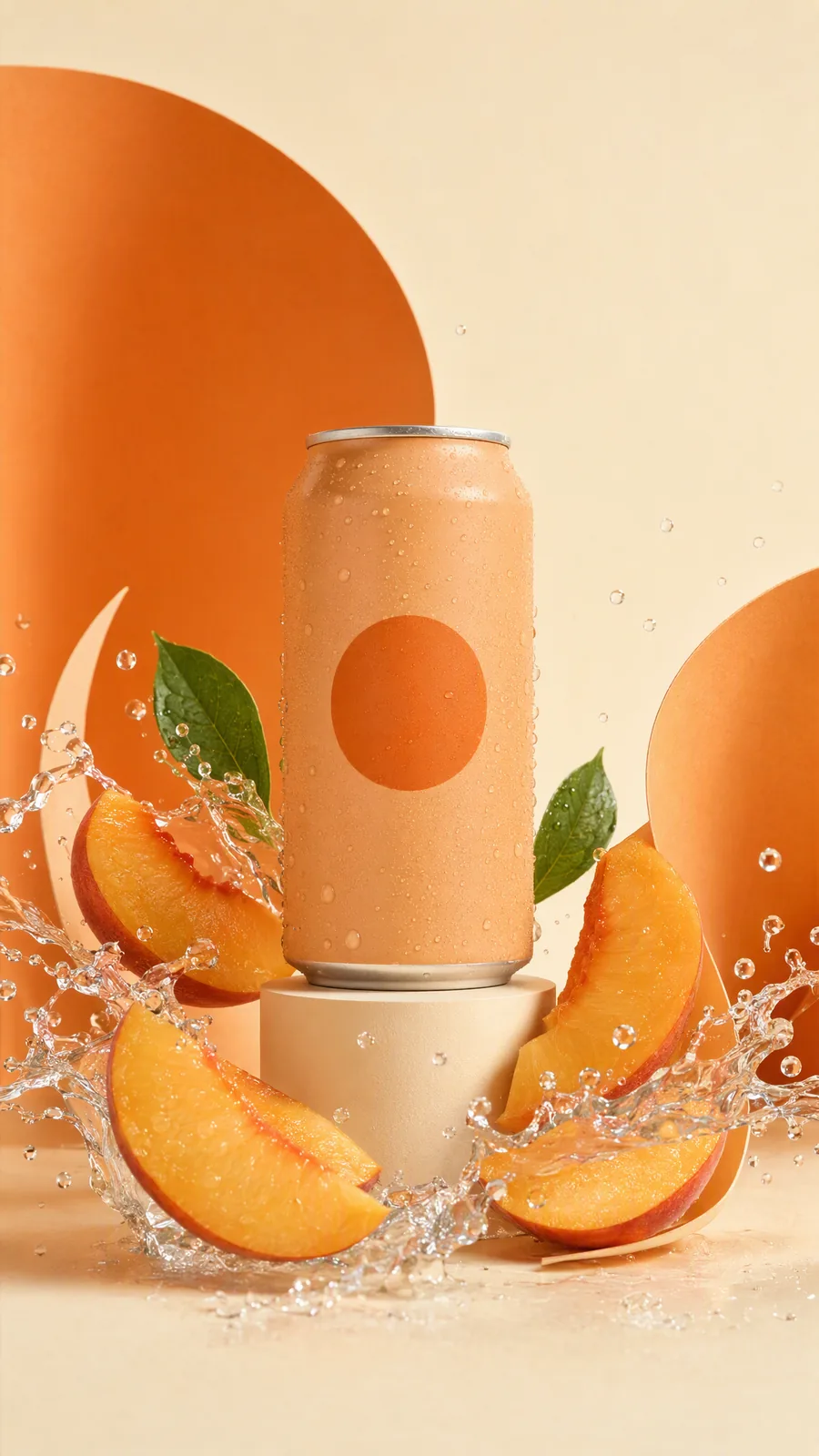
The starting visual direction is already clear in the existing still: can, peach slices, liquid and a restrained orange palette. There is no human performance to copy.
Watch the existing Advibly peach-can animation (MP4)
The moving version animates the liquid, fruit and surrounding forms. It illustrates why a product-hero brief can call for image-to-video instead of character Motion Control. It does not prove a model-specific capability, perfect packaging fidelity or physically accurate liquid. The product is fictional; the scene is synthetic.
To reproduce this kind of creative task in Advibly, supply your product image, request one clear scene, inspect the still, then use it as the reference for a short animation with a defined motion. Check the complete result against the source. For a controlled human gesture, use the two-input Motion Control route described below instead, and verify that your actual integration exposes those inputs. Start with an image-to-video workflow when the job is an animated product scene.
Choose the orientation mode
Kling's official Motion Control guide describes the modes as follows:
|
Mode |
Motion and expression |
Orientation and camera |
|---|---|---|
|
Character Orientation Matches Video |
Follow the video |
Follow the video |
|
Character Orientation Matches Image |
Follow the video |
Orientation follows the image; camera can be prompted |
Check the selected version's controls instead of assuming every route exposes the same settings.
VIDEO 3.0 adds facial-element binding in video-orientation mode. That facial reference does not preserve clothing, hair, makeup or props. It is not a product-locking feature.
The guide's 2.6 section specifies a 3–30-second continuous reference, a short edge of at least 340 pixels and a long edge no greater than 3,850 pixels. It warns that difficult action can produce shorter output without refunding consumed credits. Do not silently apply those 2.6 rules to every 3.0 integration.
Check the integration, not just the model name
As checked on September 12, 2026, fal's Kling v3 Standard Motion Control API lists different maximum reference lengths by orientation: 10 seconds for image and 30 seconds for video. Its image guidance asks for clear proportions, limited occlusion and a character occupying more than 5% of the image. The reference video should show the head and upper or whole body clearly.
That endpoint also retains reference sound by default. Decide whether to keep it; background conversation or unlicensed music should not enter the finished ad by accident. These are fal endpoint details, not a statement that Advibly uses that endpoint or those defaults.
Before submitting, record the actual provider, version, orientation and quote visible in your chosen route. A saved preset named “Kling” is not specific enough to reproduce a result later.
Prepare references around one action
For a first attempt, brief a gesture that has a clear beginning and end. “Raises an open hand toward the empty space beside them, pauses, then lowers it” is easier to assess than “acts excited about the product.”
Prepare the character image and action clip together. A tightly cropped portrait is a poor planning partner for a performance whose important action happens below the waist. Keep the parts needed for the action visible in both sources.
Use a reference performance you are entitled to use. A downloaded creator ad is not automatically an appropriate motion source. Keep the permission and intended use with the source files rather than assuming a public URL settles the question.
Before spending credits, answer:
- What single action must the viewer notice?
- Which input determines the facing direction?
- Where must the hands remain visible?
- What product detail must never be generated or altered?
- What should happen to the reference audio?
- What would make you reject the clip even if its movement looks smooth?
If those answers conflict, change the shot plan first. A prompt asking for both the reference video's exact turn and a different fixed facing direction leaves the brief internally confused.
A worked plan: introduce a notebook without inventing a demo
Suppose a brand wants a short video introducing an actual blue notebook. Its verified product facts are the blue cover and blank pages. The team has an accurate packshot, real footage opening it and permission to use a presenter's likeness and performance.
The proposed sequence is 15 seconds: a six-second presenter gesture, five seconds of real product footage and a four-second product card. These are editing targets, not a claim about what a model will return.
Shot 1: point toward space, not at a generated product
Place the presenter on the left with room on the right. Record a six-second, locked-camera reference: neutral start, one open-hand gesture into the empty space, a short pause and a return to rest. Avoid asking the character to pick up or pass an imaginary notebook.
Choose video orientation because the planned body position and gesture direction are part of that reference. The exact version and available controls must still be confirmed in the generation route.
Use a scene prompt along these lines, adapting it to the actual references:
Bright, uncluttered desk setting. Preserve the clear space to the presenter's right for a product card added during editing. No object in the hands. No generated writing, logo, product package or spoken endorsement. Keep the scene visually quiet so the gesture is easy to read.
This prompt describes the scene's role. It does not replace the performance reference, prove likeness permission or guarantee that empty space stays empty.
Inspect the returned clip before placing the packshot. If the gesture crosses the intended card area, the hand will appear to pass through the notebook graphic. Adjust the layout only if it still communicates honestly; otherwise simplify or rerecord the gesture.
Shot 2: show the actual pages
Use the five-second real clip opening the notebook. The viewer should be able to see the cover, binding and page surface without a cut disguising a change.
Do not generate a writing demonstration just because the page looks plain. Claims such as “no bleed-through” would require their own evidence, materials and shooting conditions. For this brief, the visual job is only to show the actual blank pages.
Match the surrounding edit's color and pace without retouching away a product feature. An attractive edit should not turn an off-white page into a bright-white product claim.
Shot 3: give the viewer one next step
Use the accurate packshot and a current destination. A simple “See the notebook” card is enough if there is no approved offer. Add the text as an editable layer so the final spelling, logo and destination can be checked directly.
The result is a hybrid plan: motion transfer for a gesture, footage for product proof and conventional layout for the close. It does not need every shot to come from the same model.
Keep a shot record you can actually reuse
Copy this record before submitting a generation. Fill the output fields only after retrieval.
- Shot and job: presenter gesture; directs attention without implying product use.
- Inputs: approved character image and authorized action clip, with stable file names.
- Route: provider, model version and orientation shown at submission.
- Scene prompt: exact submitted text, not a later cleaned-up version.
- Protected details: no product in generated hands; real notebook appears separately.
- Audio decision: keep, mute or replace, with source permission.
- Spend boundary: displayed quote, approved attempt limit and stop condition.
- Actual result: output file, retrieved duration and visible defects.
- Decision: accept, targeted retry or replace with filmed performance; reviewer and date.
This record makes a second attempt useful. If the face is fine but the hand travels too far, you can change the action reference without also changing the image, background and camera. If several properties change at once, describe the result as a new direction rather than evidence that one prompt phrase solved the problem.
Where the wider Kling 3 controls fit
Motion Control is one part of the wider model family. The Kling VIDEO 3.0 guide also documents text-to-video, image-to-video, start and end frames, element references, native audio and multi-shot controls. Its ordinary video-generation duration guidance is not interchangeable with a Motion Control endpoint's reference limits.
Use those capabilities according to the shot:
- Text-to-video: explore an invented setting where exact product appearance is not the point.
- Image-to-video: animate an approved frame, then inspect any changed product detail.
- Start and end frames: define two endpoints and review the path between them.
- Element references: provide a recurring subject or object reference without assuming perfect continuity.
- Native audio: review the actual words, pronunciation, timing and unwanted sound.
- Multi-shot controls: plan coverage, then check each scene and transition individually.
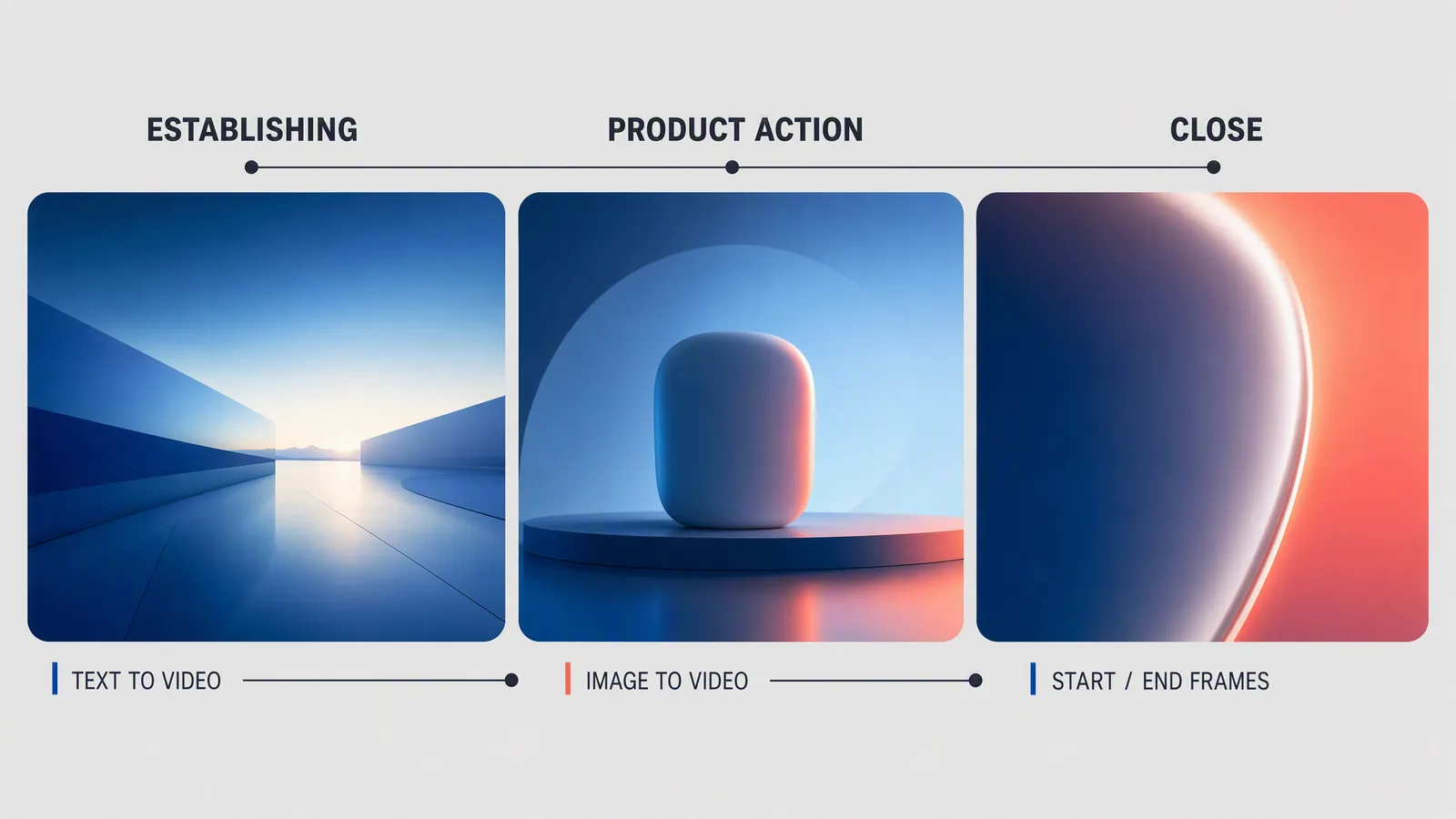
Editorial storyboard illustrating three input choices. These stills are not an actual Kling output sequence, a Motion Control comparison or proof of product fidelity. The “product action” panel shows a generic object, not the notebook in the worked brief.
For a longer campaign, approve the necessary shots and assemble them into a sequence. A model's multi-shot option can be useful, but the final edit still needs coherent pacing, accurate product details and a clear ending.
Diagnose the failure before buying another attempt
|
Visible problem |
Inspect first |
Useful next move |
|---|---|---|
|
Gesture goes out of frame |
Both inputs' body framing |
Reframe or simplify the action |
|
Person faces the wrong way |
Orientation selection |
Correct the mode, then retry |
|
Face changes during the turn |
Source clarity and face visibility |
Simplify the turn; review again |
|
Sleeve or prop changes |
Frames around the defect |
Remove the risky interaction |
|
Hand cuts through the product |
Product layer and hand path |
Separate the shots or film contact |
|
Output ends too soon |
Actual duration and usable action |
Simplify the reference or revise the edit |
Do not hide a failure in a contact sheet by selecting only the best frame. Watch the full clip at normal speed, then inspect the moments where hands, face or product edges change.
When a product-contact defect is the central action, a different production route is often more useful than another prompt. When the source footage already solves the shot, edit that footage.
Review the assembled ad, not only the generation
The final video can introduce mistakes that were absent from its individual clips. A crop can remove the pointing hand. A caption can cover the product. Music can make an otherwise neutral gesture feel like an endorsement.
Check the first frame, transitions and final card in the intended destination crop. Play the entire export with sound and without sound. Confirm the product appearance, text, CTA and any implied claim. Record actual output duration rather than assuming it matches the reference.
For a genuine before-and-after example, show the authorized character image, the relevant action reference and the retrieved output together. Identify the model and orientation and disclose meaningful failures. This article does not present such a controlled run.
Carry the reviewed shots into Advibly
In Advibly, start with the connected brand library and existing product assets. Keep the approved references, brand context and shot brief together. Use the available video route that matches the job, then assemble reviewed shots with the product card and supporting assets.
For Motion Control specifically, check that the selected route accepts both required inputs and exposes the intended orientation. If it does not, use a suitable external route and bring the reviewed output into the campaign, or choose another production method. That narrow check does not limit Advibly's broader creation, assembly, publishing or analytics capabilities.
Once the full export is approved, Advibly can carry it into publishing and scheduling for connected platforms, with post-status checks and analytics afterward. A successful generation is not the same as a successful social post, and neither establishes campaign performance.
For subscription decisions, use the Kling pricing guide. Check the live feature quote before each run; direct Kling credit rates should not be treated as Advibly rates.
Start with one clearly bounded shot in Advibly. Reuse a suitable approved asset before generating a replacement.
Frequently asked questions
Is Kling Motion Control the same as image-to-video?
No. Motion Control uses a performance video alongside the character image. Ordinary image-to-video is a different starting point when the main job is animating an approved product or campaign frame.
Can it guarantee an unchanged face or product?
No. Treat references and consistency controls as inputs to review, not guarantees. Keep exact product demonstrations in footage or controlled production when an altered detail would change what the viewer believes.
Should every shot use Kling?
No. A character-led opening, a real product close-up and an editable end card can belong in the same ad. Choose the method that fits each shot's evidence and production needs.
Do I need to generate a longer clip for a longer ad?
Not necessarily. Plan the edit around the shots it needs and use their actual retrieved durations. More generated seconds are not a substitute for a clear sequence or an accurate product demonstration.
Sources
Official specifications, product guidance and production accounts checked for this article. Vendor accounts describe their own work; they are not independent performance tests.