

InVideo's paid plans, checked September 12, 2026, start at $9 per month for Basic with 190 monthly credits. Pro and Ultra offer larger allocations, while business plans price by seat. The live rendered selector and InVideo's subscription guide agree on the figures below. Pricing; subscription guide.
But a subscription does not buy a fixed number of approved videos. Your usable output depends on the selected model, settings, retries and finishing work. This guide separates three numbers that are easy to confuse: cash you commit, credits you consume, and cost per finished output.
Current InVideo AI plans and prices
The following snapshot uses U.S.-dollar prices displayed in the public browser, not an authenticated checkout quote. Annual amounts are paid for the year; their monthly equivalents are budget allocations, not monthly instalments. Taxes, account offers and the final purchase terms need checking before payment.
InVideo's subscription guide also lists a $0 Free plan with limited access. Check the current account's trial allowance rather than assuming it can deliver the same model, export or production volume as a paid plan.
|
Plan and monthly credits |
Monthly billing versus annual commitment |
|---|---|
|
Basic: 190 |
$9 monthly, or $108 annually, equivalent to $9/month. |
|
Pro: 1,000 |
$30 monthly, or $300 annually, equivalent to $25/month. |
|
Ultra: 3,000 |
$80 monthly, or $720 annually, equivalent to $60/month. Higher credit selections are available separately. |
|
Team: 1,600 per seat |
$79/seat monthly or $780/seat annually. Five-seat minimum: $395/month or $3,900/year. |
|
Scale: 4,000 per seat |
$215/seat monthly or $1,800/seat annually. Five-seat minimum: $1,075/month or $9,000/year. |
|
Enterprise |
Custom pricing and allocation. Get terms for the actual organization. |
Sources: the rendered pricing selector with monthly/annual and Team/Business tabs inspected, corroborated by the subscription table and plan limits. All three were checked on September 12.
Version warning: an automated extraction of the pricing page returned a different Starter/Plus/Max configuration. It did not match the rendered browser or the matching subscription documentation. We use the corroborated rendered values, not a mixture of those surfaces. If your account displays another configuration, replace every input in the examples with your own offer. We did not purchase a plan or inspect an authenticated checkout.
A smaller monthly equivalent can still cost more for your project
Consider a project that needs Ultra for eight months. At the displayed monthly rate, eight payments total $640. The annual commitment is $720, even though its equivalent monthly rate is lower. Annual billing only becomes cheaper on price alone once the comparable monthly payments exceed that commitment; here, nine monthly payments equal it.
For Pro, the same arithmetic reaches equality after ten monthly payments. Basic's captured monthly and annual prices have no price-only saving over twelve months. Promotions or other entitlements can affect your decision, but don't turn an annual equivalent into a cancellable monthly price.
Cancellation also isn't the same as a refund. InVideo's subscription guide says cancellation stops renewal while the paid period continues; refund eligibility is reviewed separately. Read the applicable terms before making an annual commitment, especially if the project is short or uncertain. Cancellation and refunds.
Define the film before dividing by credits
An explainer is a useful stress test for a pricing comparison because it contains more than a generated shot. This existing Advibly example starts from Coffeeverse's 84 Hours Anoxic Naturals product source and presents it as a paper-collage explainer. It shows the kind of completed creative to put in a brief—not an InVideo result or a measured cost advantage.

Still preview of an existing Advibly source-to-output demonstration, not an interactive player. The real product pack is the source; the right-hand scene is an illustrative explainer frame. Coffeeverse is not presented as a customer endorsement, and the illustration is not footage of the coffee-production process.
See the paper-collage workflow and its existing video example.
For this kind of film, budget the source preparation, scene images, motion, narration, music, captions and assembly that the chosen route actually needs. If InVideo's editing and stock workflow already supplies the required pieces, count that benefit rather than forcing a switch. If reusable product context and related campaign assets are the missing part, evaluate Advibly against the same deliverable.
To reproduce the format in Advibly, provide the product URL and exact pack photo, choose one source-supported point, approve a beat map, then create and review the collage scenes before motion and narration. The current skill describes those stages; this article reuses the finished example rather than claiming a new generation run. Keep the product recognizable and label illustrative process scenes. A still cannot prove narration quality, so include playback and a requested revision in the pilot before estimating finished-video cost.
Credits pay for attempts, not approval
InVideo's credit guide describes credits as the allowance used for generation and premium features. Downloading content you've already generated does not consume another generation allowance. Editing existing videos is also distinguished from credit-charged generation; an edit that invokes an AI model can still be a new chargeable operation.
For a simple video generation, the cost depends on the actual settings, including duration, resolution, model and audio. Some workflows contain several operations. The video usage reference publishes ranges across different settings, not one price for every clip bearing a model's name. A low end of a range is not a quote for your highest-resolution output.
Before comparing plans, record the estimate for one specified job. For example: a five-second product shot at the chosen resolution, from an approved source image, with the selected audio setting. Then record what the system actually charges. Don't compare that clip with a finished narrated film containing several scenes and call both “one video.”
Define what counts as approved
For a product demonstration, approval could require the correct product shape, accurate labels, coherent motion, readable captions and no unsupported claim. For a fictional atmosphere shot, the conditions are different. Write the acceptance rule before generating, or a cheap output count can grow while the number of usable assets stays at zero.
Record rejected attempts as well as accepted ones. If a failed operation is refunded, use the net credit charge rather than counting it as both spent and returned. If you reuse an already-approved scene in a second cut, don't pretend that scene was generated twice. Keep generation, assembly and approval as separate events in the log.
Calculate capacity from the whole job
Use these planning quantities:
- C: monthly credits available for this job after reserving other uses.
- c: average net credits per attempt at the chosen settings.
- r: average attempts needed for one approved output, including billed rejects.
Estimated credits per approved output are c × r. Planning capacity is floor(C ÷ (c × r)). This is an average-based estimate, not a guarantee: one difficult shot can use more attempts than the pilot suggested.
Suppose, hypothetically, an attempt costs 60 credits and the workflow averages 2.5 attempts per approval. Each approved output then consumes an estimated 150 credits. Those are scenario inputs, not a quoted price for a named InVideo model.
|
Allocation used for the scenario |
Estimated full outputs at 150 credits each |
|---|---|
|
Basic's 190 credits |
1, with 40 credits remaining. |
|
Pro's 1,000 credits |
6, with 100 remaining. |
|
Ultra's 3,000 credits |
20, with none reserved for other work. |
Credit allocations are corroborated in InVideo's plan-limits table; the output arithmetic is our illustrative calculation. These counts don't include unrelated images, audio or other campaigns drawing on the allocation.
If the brief requires twenty approved outputs, Ultra's scenario uses the entire allowance. Adding a planning buffer equal to 25% of that workload raises the requirement to 3,750 credits: 20 × 150 × 1.25. That is a chosen contingency, not an InVideo rule. Compare the account's larger allocation or extra-credit offer with reducing the workload; don't schedule against a zero-margin estimate by accident.
Allocation cost versus what your team actually spends
Allocated credit cost answers: what share of the subscription would this output consume if you used the allowance as planned? Realized production cost answers: what did the period's actual accepted outputs cost after idle capacity and finishing?
For the annual Ultra example, the budget allocation is $60 per month. Divide by 3,000 included credits to get $0.02 per included credit. At 150 credits per approved output, the allocated subscription cost is $3. This is arithmetic from the displayed subscription, not a permanent API tariff or a full video-production quote.
Worked monthly budget: ten approvals, not twenty
Suppose the team pays for that annual subscription but completes only ten approved outputs in a month. It uses 1,500 credits and leaves the other half unused. It also spends six hours briefing, reviewing and finishing at an assumed internal cost of $30/hour, plus $20 on a separate licensed asset.
|
Budget item |
Illustrative monthly amount |
|---|---|
|
Subscription allocation |
$60, even though only half the credits were used. |
|
Human work |
6 hours × $30 = $180. |
|
Separate licensed input |
$20. |
|
Total for ten accepted outputs |
$260, or $26 per approved output. |
The subscription component alone is now $60 ÷ 10 = $6 per approval, not $3. Idle credits explain the difference. Don't add an “unused credits” charge again: the full $60 already includes them. Likewise, don't add rejected-attempt credits twice when the average attempt rate already includes those charges.
This scenario assumes no top-ups, taxes or other production work shares the subscription. If several campaigns use it, allocate the costs consistently across them rather than assigning the entire bill to each campaign. With zero approvals, there is no meaningful per-approved-output quotient; report the spend and the failed production outcome separately.
The cash-flow view is different again. An annual subscription requires its full payment upfront, while this worksheet spreads that commitment over twelve months for planning. Label which view you're showing to avoid telling finance that a $60 monthly allocation is the amount payable today.
Reset, top-up and export rules to check
Monthly allowance and purchased balances are different
Plan credits reset on the subscription cycle and don't roll forward under the standard credit guidance. InVideo's dedicated Extra Credits documentation describes a separate prepaid balance lasting twelve months from purchase, subject to expiry with the subscription. It explicitly distinguishes that balance from one-time credit packs.
There is an important documentation wrinkle: the general credit FAQ labels top-ups as resetting each cycle, while the dedicated Extra Credits page describes the longer-lived balance. Don't treat every product called a top-up as interchangeable. Confirm which balance you're buying and its expiry on the actual account offer.
The Extra Credits guide also describes auto-reload and a consumption limit. Manual purchases aren't capped by that consumption limit, and pausing consumption doesn't necessarily stop purchases or auto-reload. Check each control separately; a usage cap is not automatically a hard cap on all card charges. We have not enabled or purchased any of these options.
Exporting again can matter for watermarks
The watermark help article distinguishes preview watermarks from the final export. It also says files exported before subscribing remain watermarked until the original project is re-exported under the paid plan with the appropriate options. Upgrading doesn't rewrite a file already downloaded to your computer.
Seat pricing needs a seat-level calculation
Multiply the applicable per-seat price and allocation by the required billed seats before comparing business plans. Don't confuse a feature line about multiplayer editing with a promise that every collaborator is free. Review current membership and billing terms if several people need access; a single-user production budget is not a multi-person quote.
Why older InVideo pricing examples don't match
The earlier September 2 research used Plus, Max, Generative and Elite on a different credit scale. The retained illustrations below make a useful historical lesson: a mathematically correct worksheet can become the wrong buying guide when its inputs change.
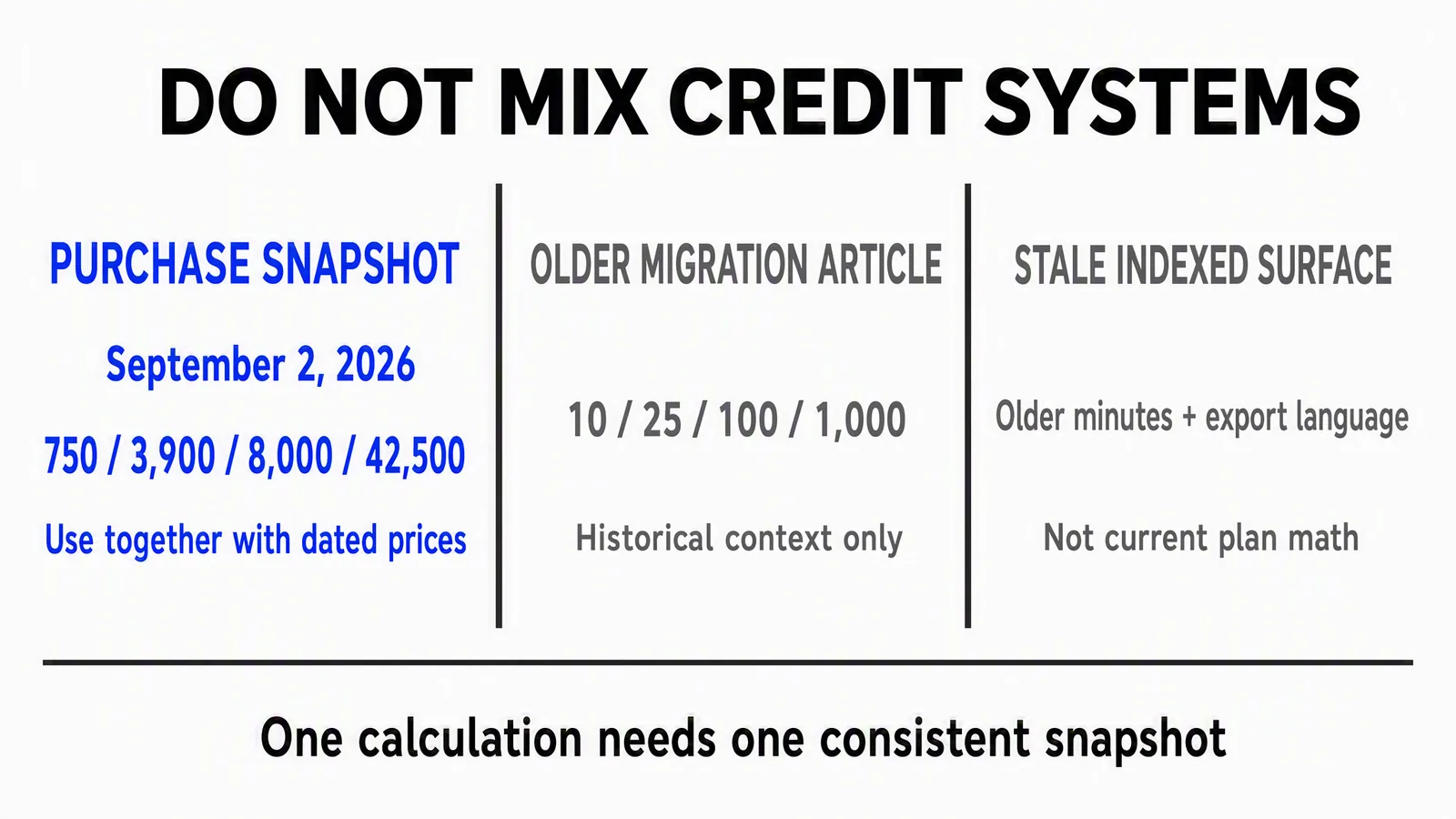
Historical research illustration, not current pricing. Even its left-hand September 2 purchase snapshot is superseded for this guide by the September 12 rendered pricing and matching subscription documentation. Keep each price and credit system together.
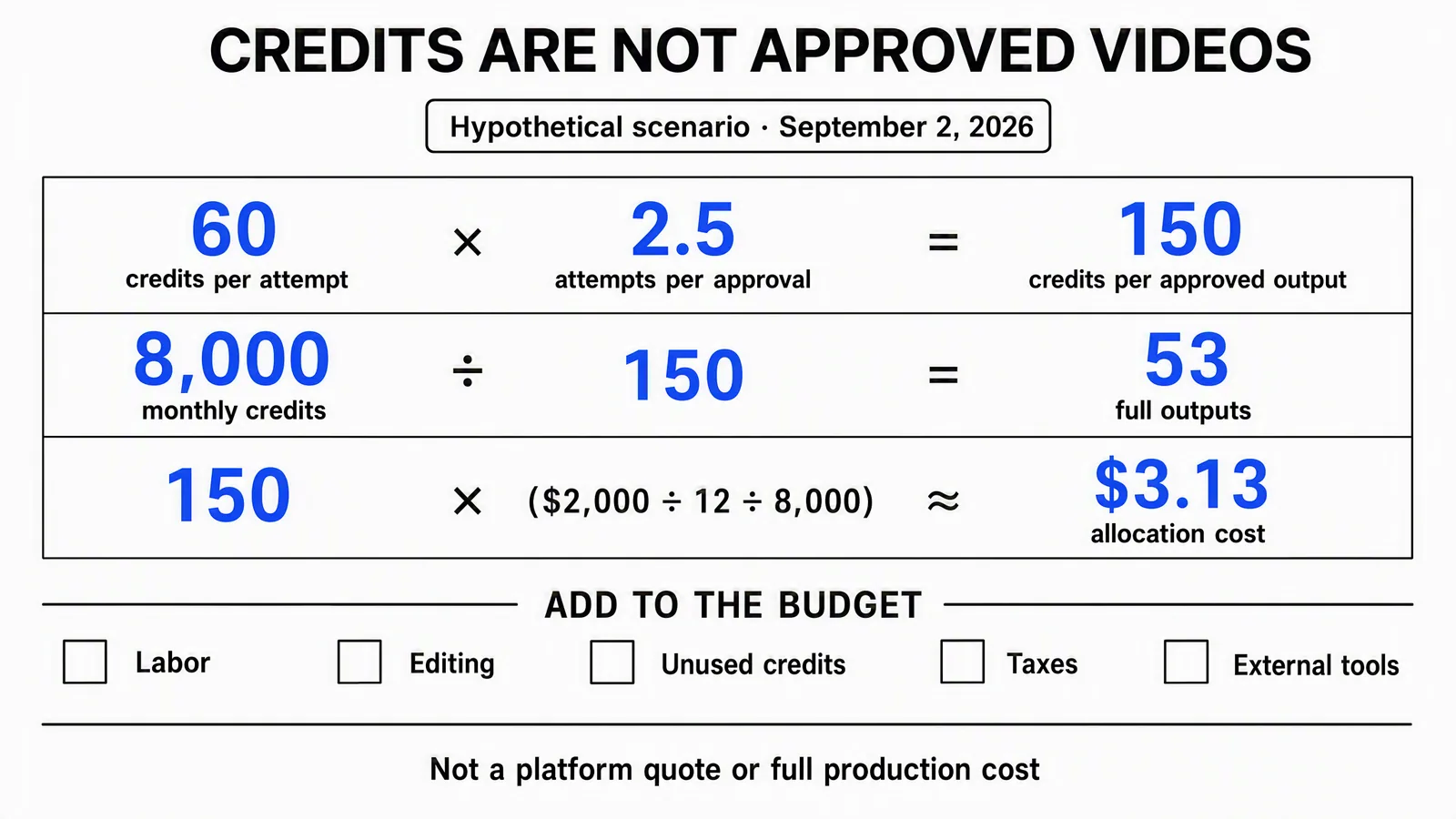
Superseded September 2 scenario, retained to show how the denominator changes. Its 8,000 credits, $2,000 annual price, roughly 53 outputs and $3.13 allocation cost are not the current Ultra example. Floor rounding describes estimated capacity, not guaranteed approvals; the newer worked budget above includes unused allocation explicitly.
Don't repair an old calculator by changing only its plan name. Update the annual or monthly price, billed seats, allocation, exact job estimate and retry assumptions together. Preserve the date of the old example if you keep it for comparison. An old Help article or indexed snippet is not enough to establish today's offer.
Choose by the finished production job
InVideo is worth evaluating when you want several generative models alongside a timeline editor and stock-based production. Its current pricing page lists those capabilities with plan-specific access. For a team already comfortable with that workflow, a repeatable brief and a measured retry log are more useful than switching tools solely because another subscription has a smaller headline price.
Advibly is relevant when the larger job starts with a product and needs a coordinated campaign. For a hypothetical SaaS launch, start with the website, real screenshots and saved brand context. Use Brand Intelligence to develop a sourced brief, then create an app explainer, a supporting carousel and a thumbnail from that context. A Whiteboard Doodle or paper-collage treatment can explain the problem; real screens should show the actual software.
Carry the approved assets into platform-specific captions and supported scheduling and publishing, then review publication status and analytics. A relevant Instagram post can add a configured keyword-to-DM guide link. Include the guide, destination and review work in that campaign's budget rather than counting only the generated film.
That is a different completed job, not evidence that Advibly is universally cheaper or that InVideo cannot support broader work. Use the same required outputs, source materials and acceptance criteria when testing alternatives. Compare total money, net credits, human work, accepted assets and delivery status. Never equate an InVideo credit with an Advibly credit.
Before you choose a plan
Write down one representative deliverable and the evidence needed to approve it. Get its current generation estimate, run a bounded pilot if you choose to spend, and retain the rejected-attempt log. Use the results to calculate the allocation and human effort your actual monthly workload needs.
Finally, check the account's current billing period, seats, credit balance type and renewal terms. A plan fits when it supports the work you can complete and use, not when its included-credit number looks largest.