

To schedule a Facebook Page post, open Meta Business Suite, select the Page, prepare the post, choose a future date and time, and confirm it appears in scheduled content. For a Facebook Group, start inside the Group with the appropriate admin or moderator role. Personal and professional-mode profiles need a separate, account-specific check.
If the Schedule button is missing, first ask what you are posting to. A Page permission, a Group role, and a profile feature are different problems, even when they look like the same missing control.
Which Facebook scheduling route should you use?
|
Destination |
Start here |
|---|---|
|
Facebook Page |
Meta Business Suite, with permission to manage that Page's content. |
|
Facebook Group |
The Group composer, using an authorized admin or moderator identity. |
|
Personal profile |
Its own composer. Don't expect it to appear as a Business Suite Page destination. |
|
Professional-mode profile |
Check the current Facebook mobile composer for scheduling controls. Availability is not established for every account. |
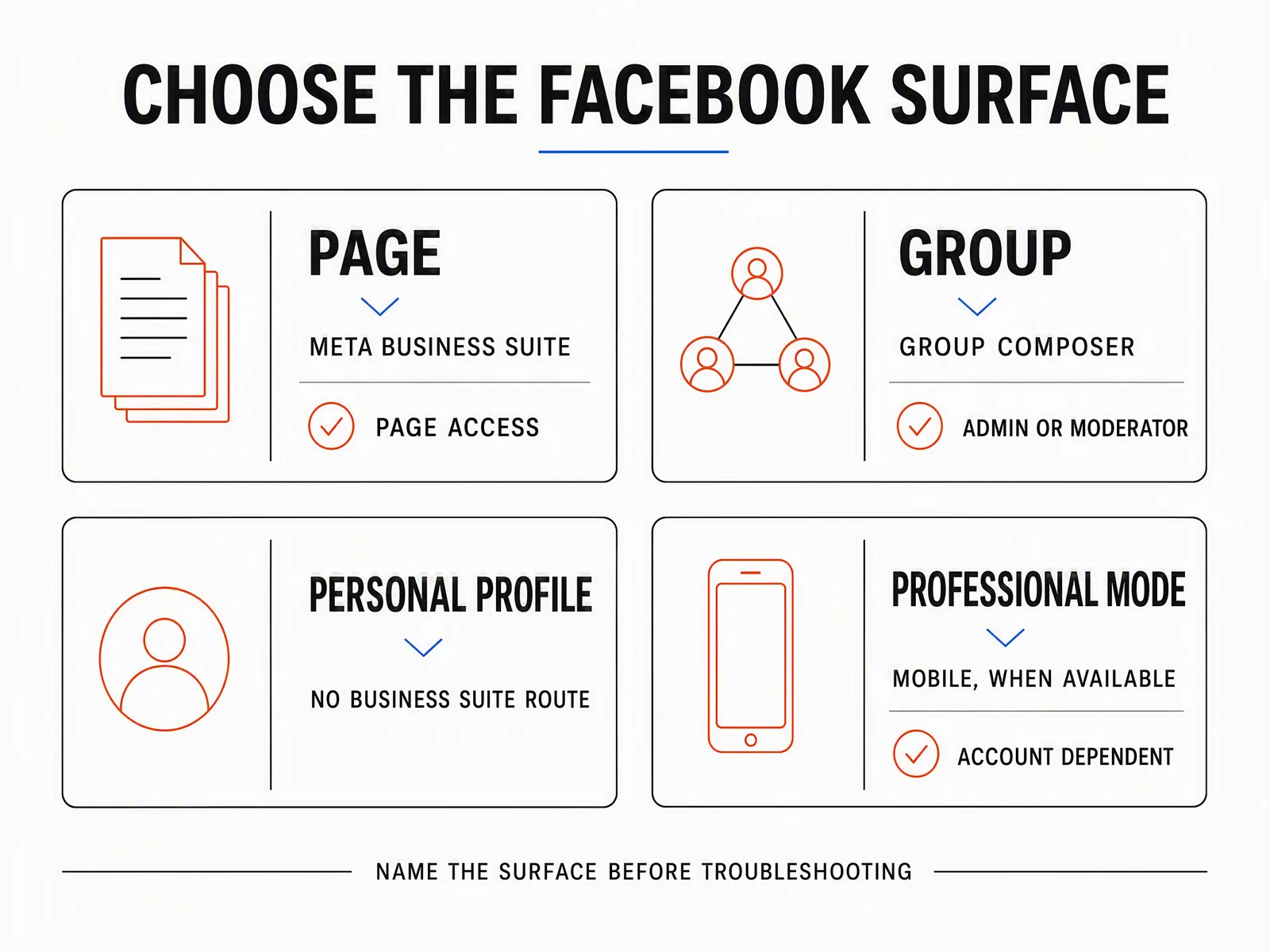
Editorial route guide, not a screenshot of current controls. Professional-mode scheduling must be checked on the actual account. The table provides the same guidance in readable text.
For example, managing a brand's Page doesn't automatically make you a moderator of its customer Group. If you need to post a launch announcement to both, prepare two destination-specific jobs and verify access to each.
Schedule a Facebook Page post in Meta Business Suite
Use Meta's Page scheduling guidance as the platform reference. The English help body required sign-in during the September 11 review, so the sequence below describes the work to complete rather than claiming that exact button labels were tested today.
- Select the Page. Check its name and identity before opening the composer, especially if you manage similarly named regional Pages.
- Choose the destination. Keep Facebook selected. Remove a connected destination if this post isn't approved for it.
- Prepare the content. Add the final copy, media, relevant link, and any required disclosure. Inspect the Facebook preview.
- Choose scheduling. Set the intended date and time using the scheduling control available for this post. Check the displayed time zone.
- Confirm the job. After submitting, reopen the scheduled item through the planner or content view and match it to the version you approved.
Meta also maintains Business Suite scheduling help. Labels and available actions can differ across desktop, mobile, accounts, and formats. If you cannot locate a control, inspect the current interface and access settings; don't assume a screenshot from an older tutorial still matches your workspace.
Prepare the Page post around an actual creative

The Emerald Green tee becomes a three-panel styling collage. Jeans, tailored trousers and shorts create three different outfit ideas around the same plain crewneck.
Keep the reference tee’s color, cut and lack of print fixed. Request distinct styling panels rather than inventing three new SKUs. Other clothes are styling props, not an offered bundle; the generated arrangements do not prove physical fit.
Colorful Standard Classic Organic Tee Emerald Green product source · Open the finished editorial image
A concrete Page-post brief
Proposed copy for a creative-production Page: “One product reference, three styling directions. Inspect what changes in the ad while the tee stays the anchor.” This is an editorial proposal, not a Colorful Standard post, a bundle offer or a scheduling receipt.
- In Advibly, choose the saved brand and reuse the approved asset. For your own campaign, bring your product photo and ask for a scene that fits the announcement. Keep labels and packaging accurate.
- Review the image in the intended Facebook preview. If it needs a different crop, check that the subject and any required terms remain visible. Don't stretch a vertical image into a landscape shape.
- Prepare the exact Facebook Page destination, final caption, selected media and a full date with time zone. Advibly's Facebook publishing route requires a supported Page; it does not publish this job to a personal profile or Group.
- Approve the complete post, schedule through the chosen supported route and reopen the saved item. Match the Page, media, copy and time. Leave publication evidence pending until the post is actually live.
A compatible assistant can operate Advibly's creative and social scheduling tools through MCP. Ask it to list the connected destinations and return this Page-post proposal before scheduling, then authorize the exact release. Do not leave the destination implicit when several accounts are connected.
Create the missing campaign assets in Advibly.
Generate your first creatives for free. Publishing remains subject to the current plan and account permissions. If all you need is to schedule a finished Page image, Business Suite is a reasonable place to stop; a connected creative workflow helps when producing and handing off the assets is the repetitive work.
A Page access check is better than sharing a login
Facebook's Page access documentation distinguishes Facebook access from task access. Task access can allow content work through management tools without letting the person switch into the Page on Facebook. Ask for the content access the job needs, not full control by default.
If the Page is absent in Business Suite, confirm the operator's identity and that access was granted and accepted for the intended Page. If the Page is present but a post won't schedule, check the selected format and features next. Those are different failure points.
Don't fix either problem by circulating someone's personal password.
Save unfinished work as a draft
A draft is a place to keep unfinished work. Approval is a person's decision to release an exact version. Scheduling is a future publishing job. Your team should be able to name all three without using them interchangeably.
If the price, destination link, creative, or reviewer is still unresolved, save a draft and assign the missing decision. Don't put a placeholder into tomorrow's queue because the calendar looks empty.
To change a scheduled post, open that specific item and inspect its available actions. If the current format supports the edit you need, make it and recheck the result. Otherwise stop the old pending job and schedule a reviewed replacement. Confirm that both versions are not left active. “Publish now” changes the release time and needs the same authority as any other release decision.
Schedule Group posts inside the Group
Group scheduling is a separate route. Meta's 2017 announcement of scheduled Group posts established admin and moderator scheduling; use the Group scheduling help page and the current Group controls for today's operation. The latter was sign-in restricted during this review.
Open the intended Group, confirm the identity and role you are using, then prepare the post in its composer. Where scheduling is available for the chosen format, choose the time, confirm it, and find the item again in the Group's scheduled-post or admin area.
If a format or recurrence option is missing, check the Group's settings and your role. Don't assume that the Page workflow, a third-party scheduler's Facebook logo, or scheduling in another Group proves support here. Recurring Group posts also need their own current-control check; this guide doesn't promise recurring Page posts.
A Group post should fit the community's rules and audience. An approved public Page announcement isn't automatically an approved message for a private customer Group. Review whether the copy discloses customer information, assumes knowledge the Group doesn't have, or reads like an unwanted advertisement.
What about personal and professional-mode profiles?
Start in the profile's own composer, not the Business Suite Page list. For professional mode, inspect the current mobile flow for a scheduling option. If it is available, check the chosen audience, date, and time, then locate the scheduled item afterward.
That is a conditional instruction, not a promise that professional mode unlocks scheduling for every profile. This review did not establish universal availability or test a logged-in profile. If the control is absent, use a supported manual route for that account. Don't substitute password-sharing or a browser bot for missing platform support.
Write the time zone beside the time
“Friday at 9” is not enough for a remote team. Record the full date, local time, and an IANA time-zone name, then compare them with the scheduler's display.
Hypothetical appointment: September 18, 2026 at 09:00 in America/New_York. On that date, the same instant is 13:00 UTC and 18:30 in Asia/Kolkata. That conversion is for this example date, not a permanent New York offset or a recommended posting time.
If the operator in India enters 09:00 in a scheduler displaying Indian time, the post will not match the New York brief. Resolve the display before confirming; don't assume the interface uses the audience's zone.
Use the current time picker's accepted range for that route. This review did not verify one universal Facebook scheduling window, and Business Suite limits should not be borrowed from an API or another platform. If your campaign date is too far ahead, keep the item approved but unscheduled, and assign a date to return and schedule it.
Prepare a campaign with this 12-field checklist
Use one record per post. The checklist is an editorial tool, not a set of required Meta API fields.
Before scheduling, complete fields 1–10 and 12. Field 11 is completed after the job exists. That distinction prevents a circular rule in which you need scheduling proof before you're allowed to schedule.
- Surface: Page, Group, or profile. “Facebook” alone is not enough.
- Destination identity: exact destination and an identifiable owner. Include a URL or ID where available so similar names cannot be confused.
- Scheduler access: the operator and relevant Page content permission, Group role, or verified profile control.
- Campaign job: the one purpose of the post, such as demonstrating a product, answering an objection, or announcing an event.
- Format: the actual post type and any features it needs. Check support in that destination's composer.
- Final copy: the approved text, call to action, tags, and disclosure, with a version reference.
- Final creative: the approved file or asset reference, crop, rights status, and mobile review.
- Link and preview: the destination and its preview, if relevant. Mark genuinely unused links “not applicable” rather than leaving them ambiguous.
- Date and time: full local date, time, and time zone.
- Approval: who cleared the exact version, when, and for which destination and time.
- Schedule proof: the actual scheduled-item reference or privacy-safe confirmation capture. Leave it pending until the job is created and checked.
- Change owner: the person responsible for later edits, stopping the job, and resolving discrepancies.
Use social media campaign examples when field 4 is vague. The point of the batch is to coordinate a useful campaign, not to produce twelve filled cells around an aimless post.
Worked record: a fictional product-demonstration post
The following is hypothetical. Northstar, the people, and the asset references are teaching examples, not a real client or an existing platform job.
|
Field |
Example entry |
|---|---|
|
Surface |
Facebook Page. |
|
Destination identity |
Northstar Product Page; its exact URL would be recorded here by owner Maya. |
|
Scheduler access |
Leo, with confirmed Page content access. |
|
Campaign job |
Show how the import preview helps a user inspect columns before confirming. |
|
Format |
Page video post, subject to support in the actual composer. |
|
Final copy |
Caption version 3, naming only what the real demonstration shows. |
|
Final creative |
Import demonstration version 5, captured from the actual product before approval. |
|
Link and preview |
Approved product destination to be entered and checked; do not guess the URL. |
|
Date and time |
September 18, 2026; 09:00; America/New_York. |
|
Approval |
Maya's approval timestamp and exact asset/caption versions to be recorded. |
|
Schedule proof |
Pending. Fill only after the scheduled item is verified. |
|
Change owner |
Leo. |
This sample is not ready to schedule: the exact Page, link, support check, and approval are still placeholders. Replace them with real verified values first. The pending schedule-proof field alone is not a pre-scheduling blocker.
That is what a useful checklist should reveal. It should expose unfinished decisions instead of making a fictional row look operationally complete.
Queue the batch in separate destination sessions
Group the ready records by exact Page or Group. Keep that destination visible as you work. Finish and reconcile its jobs before switching to another account.
For each record, match the media and caption to their approved versions, confirm the date and time zone, schedule, then record the actual scheduled-item evidence in field 11. If one record fails, flag that record and its owner. Don't describe the whole batch as queued because most rows worked.
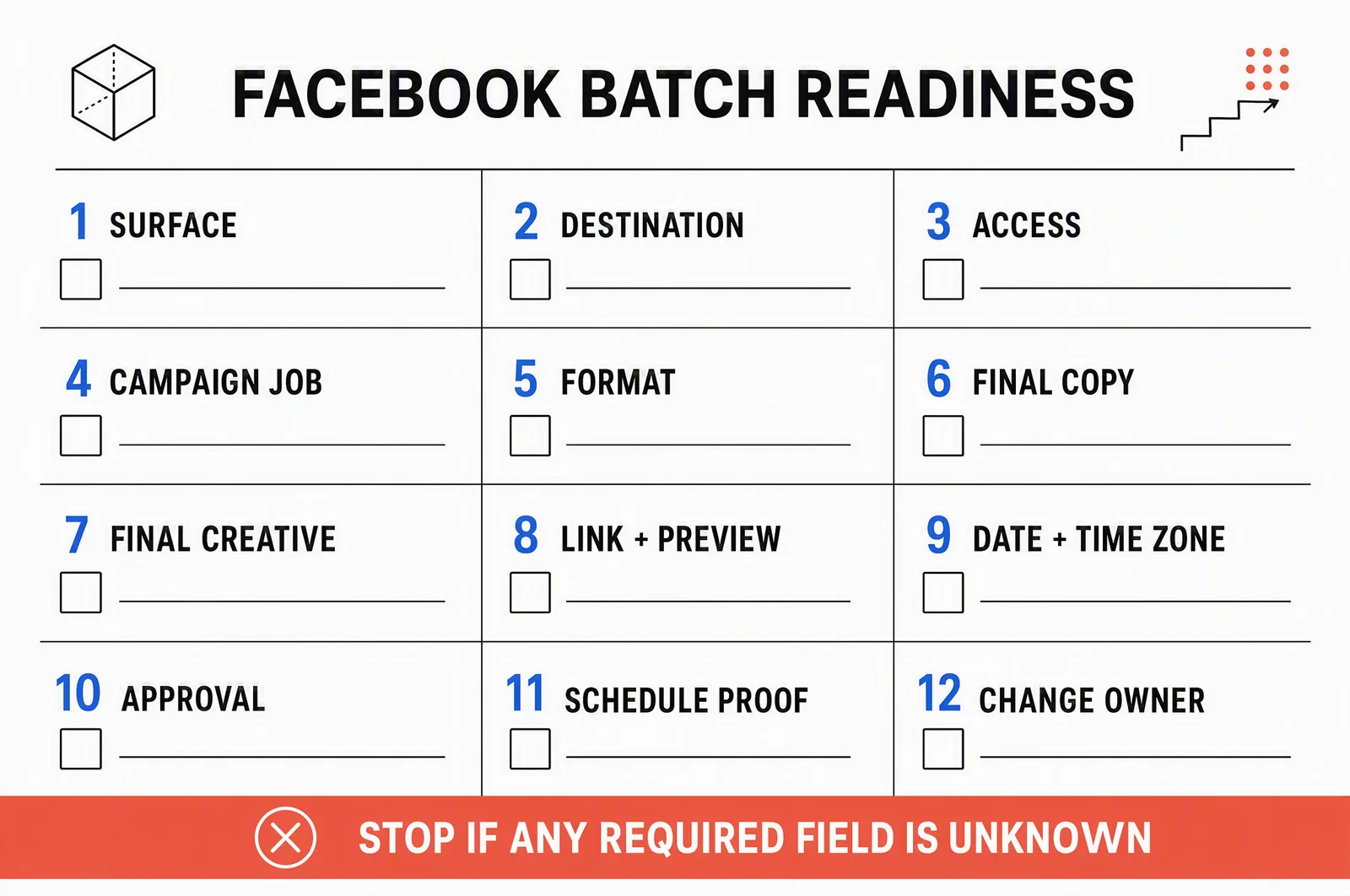
Final batch-reconciliation checklist. Do not mark the batch fully queued while a required field is missing. Schedule proof is collected after scheduling, not required before creating the job. The numbered list above is the text equivalent.
At the end, count approved records against confirmed scheduled items for that destination. Investigate missing items and unexpected duplicates. A temporary success message is not a substitute for finding the scheduled object again.
This confirms the queue, not publication. After release, verify the live post separately. For the broader approval-to-publication record and ambiguous-retry approach, see the Instagram automation workflow; keep its Instagram-specific mechanics separate from Facebook's routes.
Troubleshoot the failed step, not the whole platform
Destination missing: check whether the object is a Page, Group, or profile, which identity is active, and whether access was granted for that exact destination.
Date rejected: check the current scheduling window and displayed time zone. Keep an out-of-window post as an approved future task rather than changing the campaign date without approval.
Scheduled post missing: check the destination and filters, then look for a saved draft or incomplete submission. If a release may already have happened, inspect the live destination before creating another job.
Copy changed after approval: stop the pending version where possible, review the change, and reconcile the final scheduled object again. If it is already live, editing or removal is a separate public-content decision.
One network succeeded and another failed: record each result separately. Connected destination toggles don't turn several publications into one outcome.
When asset creation, review, and account switching consume more effort than scheduling, use a shared creation-and-publishing workspace to make campaign assets, organize approved posts in the calendar, and publish to connected accounts. Post-publishing workflows and analytics then help the team review what went out and decide what to make next.
For the Facebook Page batch, keep the Page destination explicit and reconcile its scheduled jobs. Review the published posts and their analytics together with the original campaign purpose, so a follow-up batch builds on what you learned rather than simply filling the next week.
For one finished Page post, the native route can be sufficient. For a campaign, the improvement is a reconciled set of approved jobs, each on the right destination, with an owner who can explain what is ready, what is queued, and what still needs work.