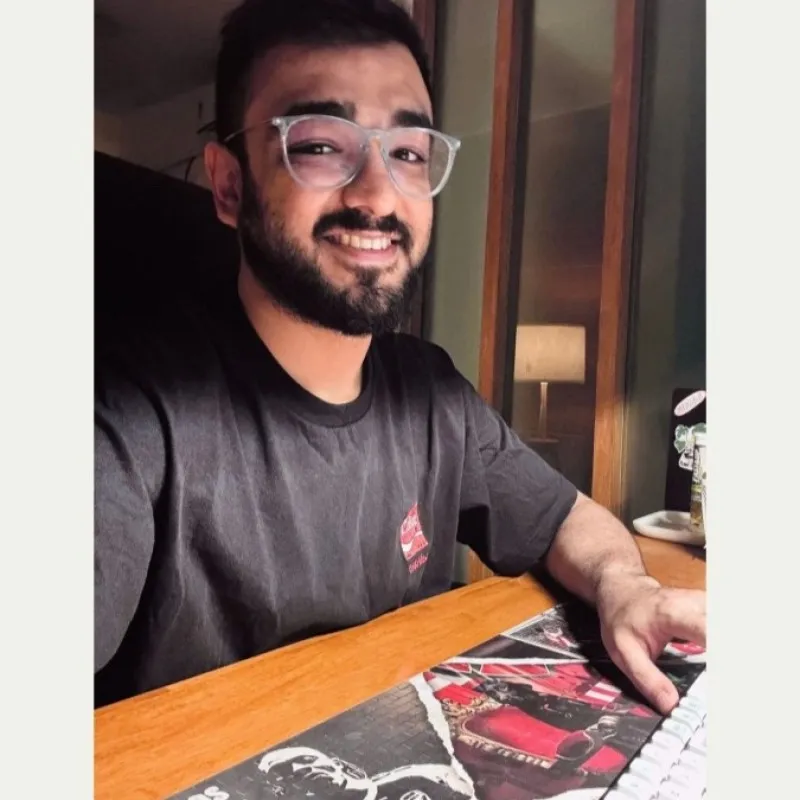

Cursor can use the product context in your workspace to create ads through Advibly MCP. Give it the approved release brief and product screenshots, ask it to develop the creative, then retrieve the finished images and video. Cursor coordinates the work; Advibly and its creative models generate the media. Cursor does not natively render a video merely because it can read your code.
For a concrete output reference, open the feature-spotlight and headline-led examples in Advibly's public static-ad gallery. They show two ways to turn product facts into an ad. The gallery is published product proof, not evidence that these examples were generated in Cursor or from the illustrative workspace below.
Open the finished static-ad examples
Watch a finished UGC-style video example
Connect the intended Advibly account using the dedicated Cursor setup instructions. You need an onboarded brand, approved product sources and credits for generation. Keep authentication user-specific and never put credentials in a shared repository. The setup page owns configuration details; this walkthrough begins with the creative job.
1. Select the product facts Cursor may use
A repository contains more than marketable product truth. It can include unreleased features, tests, private customer data and configuration. Do not give a creative task permission to send everything it can read to an external service. Select the exact public product page, approved release brief and screenshot files for this job.
For this illustrative walkthrough, suppose a task-management app has launched a saved-view feature. Your workspace contains an approved release note, a positioning brief and screenshots of creating and reopening a view. The goal is one feature static, one problem-led variant and a short launch video. This is a worked example, not a report of a measured customer campaign.
Use only the approved release brief, positioning note and screenshots selected for this task. Create concepts for two product ads and one short vertical launch video through Advibly. Do not modify application code, inspect credentials, use customer data or imply unreleased features. Show the product claims, source files, proposed generation inputs and costs before creating assets. Save approved outputs only to the agreed campaign destination. Do not publish.
Name the actual permitted files when you use the prompt. Where Cursor exposes tool controls, disable unrelated servers and tools. A written boundary helps direct the agent; it is not a substitute for the client's permissions.
2. Reconcile release context with the saved brand
Ask Cursor to inspect the live Advibly tools, list accessible brands and retrieve the intended brand by ID. Compare the saved audience, offer and visual identity with your approved files. The brand record supplies reusable identity; the release brief supplies what changed.
If the saved context describes a planned feature while the release note says it is live, resolve which source is current. Do not silently overwrite the brand record as part of making an ad. Confirm any persistent context change separately. Check the available credits before proposing a generation batch.
3. Map each claim to an image, not just a slogan
For the saved-view example, a feature-led concept might say ‘Return to the view you saved’ over an authentic saved-view screen. A problem-led concept might ask ‘Setting up the same filters again?’ and show the save action. The release brief must support both. Neither concept should claim automatic project management or time saved without evidence.
Have Cursor return a concept sheet containing the headline, supporting copy, exact source, screenshot reference, aspect ratio and destination. This is where workspace context earns its place: the agent can connect a claim to the file that substantiates it, instead of guessing from the product name.
4. Generate the first static and inspect the actual file
Approve one static with its selected brand, references, format and quoted cost. Cursor calls the connected image-generation tool and retrieves the completed result. Check the actual image against the concept sheet: readable copy, accurate product screen, correct logo and a layout suited to its placement.
If the model invents interface controls or corrupts important screen text, reject that treatment. Use the authentic screenshot in a composition or simplify the visual instead of accepting a polished but false demonstration. Once the first direction works, create the second angle without changing the underlying feature claim.
5. Turn the approved direction into a video
For the saved-view launch, the sequence could show the repeated-filter problem, the real save action and the return to the saved view. Choose a direct clip tool for a short visual or a suitable creative workflow for several scenes and assembly. Keep the real product screens as evidence; a synthetic presenter is not a real customer testimonial.
Approve the script and scene plan before rendering. Retrieve the existing job by ID while it is processing, rather than asking for a new generation each time it takes longer than expected. Review the final cut for screen fidelity, claims, aspect ratio, readable text and audio. If the workflow only returns separate clips, finish assembly before calling it a completed video.
6. Deliver the campaign without touching application code
Return an index with each approved image and video URL, generation ID, source claim, intended placement and review outcome. Save selected files only to the destination agreed in the brief. A chat preview is not proof that the output exists there. If local saving is unavailable, return usable asset links and say that files have not been saved locally.
Check that application source and deployment files were not changed. A request to create launch ads does not authorize a product patch, even when Cursor notices one it could make. Keep fixes to the product itself outside the creative task.
Optional: schedule social content from the same workflow
Advibly's current native tools can create and schedule social posts and retrieve per-platform publication status. Check that the actions are available in the active Cursor connection and that the selected account has the necessary plan and permissions. This does not launch a paid advertising campaign.
Before scheduling, approve the exact connected account, asset, caption and time with timezone. Specify destinations and scheduling or draft settings explicitly: the current creation tool can otherwise default to all connected accounts and immediate publication. Keep the returned post ID, and distinguish a scheduled status from a published result with a public permalink.
Troubleshoot the failed step, not the whole project
Keep the parts that already worked. A wrong feature claim needs a source correction; a pending video needs a status check; a missing local file needs retrieval. None of those automatically requires reconnecting every server or regenerating every asset. Use the diagnostic table below to identify the next action.
Choose Cursor only when the workspace helps
Cursor is useful when approved product context already lives beside your work and the campaign needs several connected steps. For an occasional asset with no useful workspace context, the Advibly portal is simpler. Either route should end with usable creative, not merely a successful connection.
Start by selecting the facts and screenshots you can safely share. Let Cursor turn them into a small, inspectable campaign through Advibly, and expand only after the first output represents the product accurately.
Connection and recovery reference
|
Scope |
Best fit |
Main trade-off |
|---|---|---|
|
Project configuration |
The server belongs to one repository or a shared project workflow |
Non-secret configuration may be shared with the project, so it needs deliberate review |
|
Global configuration |
You use the server across several projects on your own machine |
The connection is less portable for teammates and easier to forget when switching projects |
|
Symptom |
Likely cause |
What to check |
|---|---|---|
|
Server is missing |
Wrong configuration scope or stale configuration |
Confirm project versus global scope and repeat the current setup flow |
|
OAuth succeeds but the wrong brand appears |
The wrong Advibly account or brand was authorized |
Recheck identity before any paid call |
|
Cursor proposes an unrelated tool |
Too many servers or tools are enabled |
Disable unrelated tools and narrow the supplied context |
|
Generation runs with incorrect product details |
The brief and saved brand context conflict or the wrong source was selected |
Reconcile product truth before retrying |
|
A pending video creates duplicate spend |
The agent resubmitted instead of checking the existing job |
Preserve the first job ID and retrieve that job |
|
An image appears in chat but cannot be delivered |
The preview was mistaken for a saved final asset |
Retrieve the asset and record its final destination |
|
A creative task changes repository files |
Creative and code permissions were not separated |
Disable edit and terminal tools or restrict the output boundary |
Sources
Advibly: client-specific setup
Advibly: static-ad examples and workflow
Advibly: UGC-style workflow and assembly limits
Product capabilities and client documentation checked September 11, 2026. Worked briefs are illustrative; linked catalogue assets are existing examples, not results from those briefs.