

Use Claude to turn one product brief into a launch campaign: two static ads, one short video and captions for the channels you choose. Claude coordinates the work through MCP; Advibly creates the media from saved product and brand context. After reviewing the assets, you can ask Claude to schedule approved posts to supported connected accounts.
Start with what finished output looks like. Advibly's public static-ad gallery shows several layouts built around one product, while its UGC-style sample is a playable video. These are published examples, not results from the illustrative launch brief below, and they do not establish which client produced them.
See the finished static-ad gallery
Watch a finished UGC-style video example
Connect Advibly using the dedicated Claude MCP setup page before starting. You need the intended Advibly account, an onboarded brand, approved product sources and generation credits. If you use Claude Code instead of Claude's chat interface, use its own setup instructions; client controls and skill support can differ.
Claude connection instructions
1. Give Claude a campaign brief, not an open-ended request
For this worked example, imagine a mobile-app team launching a feature that lets users save a route for later. The approved launch materials confirm the save action, but not offline navigation. The campaign must promote the real feature without quietly upgrading it into a stronger claim.
Use the attached approved release brief, product page and screenshots to plan two static launch ads, one short vertical video and channel-specific captions. Show one feature-led angle and one problem-led angle. Use our existing Advibly brand. Do not invent reviews, ratings or features. Present the concepts and expected generation costs before spending credits. Do not publish or schedule anything yet.
Replace the example product details with your own. Supply the audience, supported claim, destination link, offer if any, permitted assets, desired placements and spend limit. A launch date helps organise the campaign; it is not permission to publish.
2. Turn the brief into a source-backed concept sheet
Ask Claude to list accessible brands, select the correct brand by ID, read its saved context and check credits. Compare the saved product information with the release brief before any generation. A newly shipped feature may not yet appear in the brand record. Resolve that difference explicitly instead of letting Claude choose whichever source makes a stronger ad.
For the illustrative route-saving launch, the feature-led static could show the real Save screen with the headline ‘Keep a route for later.’ The problem-led static could start with ‘Found a route you want to try?’ Both lead to the same feature page. Neither should promise navigation without a signal unless your product evidence supports it.
Have Claude return each concept with its headline, body copy, source, visual reference, format and CTA. This is the point to fix a weak angle. Rendering both concepts before checking the claim makes the same mistake more expensive.
3. Generate the statics and carry forward only what works
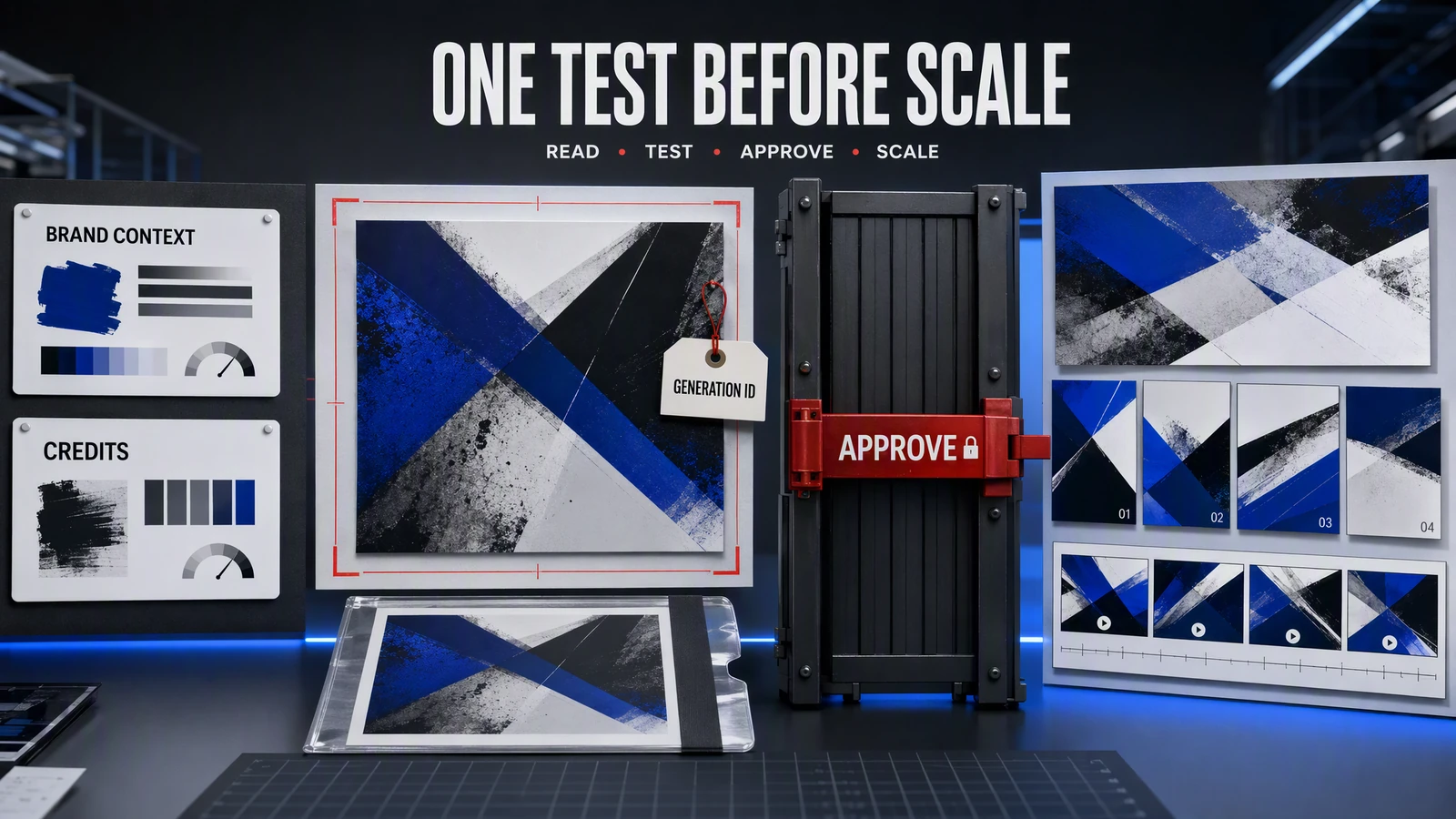
Approve the first static, including its format and generation cost. Claude can call Advibly's image-generation tool with the selected brand and approved references, then retrieve the completed generation. Keep the generation ID and open the actual image. Check every visible word, the product screen, the logo and the placement dimensions.
Once that direction is usable, generate the second concept. Change the angle or layout deliberately rather than asking for an indistinguishable duplicate. A public example of this distinction is the static-ad gallery linked above: a headline-led layout and a feature spotlight give the same product different communication jobs. They are examples of format diversity, not proof that one layout converts better.
4. Make the video tell the same product story
For the route-saving example, plan three beats: discover a route, save it, then find it again in the saved list. Use authentic screenshots for the interface moments and end with the same destination as the statics. The sequence is an illustrative production plan, not a report of a campaign run.
Choose a direct video tool for a single short clip. For several scenes, narration or a UGC-style story, use a suitable creative skill and approve its script and storyboard before rendering. Do not animate a made-up interface and call it a product demonstration. If a generative model cannot preserve readable UI, use real screen footage or screenshots in an editing workflow.
Retrieve the completed video and review it from beginning to end, including sound and captions. A set of scene clips is not an assembled film. The current UGC skill uses Advibly's native composition tool to assemble completed clips into a finished video. Confirm that this tool is available in your Claude connection, approve any assembly cost, then retrieve the resulting generation. Manual or shell-based assembly is a fallback if the required native tool is unavailable, not a prerequisite for every multi-shot export.
5. Return an asset pack someone can actually use
Ask Claude to return one index containing the two image URLs, the final video URL, the generation IDs, the approved copy for each destination and any unresolved issue. Keep the source brief beside it. For each asset, name the intended placement and whether it passed review. Do not call the pack complete if the video is still rendering or one static has unreadable text.
Write captions for the destination rather than repeating identical copy everywhere. For this example, the announcement explains what changed, while the video caption points to the demonstrated save action. A caption cannot rescue a visual that shows an unsupported feature.
6. Optionally schedule the approved social posts
Advibly's current native MCP tools support social-post creation, scheduling and status retrieval. This is social publishing, not paid-campaign management in an ads platform. Verify the actions exposed in your Claude connection and the plan and permissions for the intended accounts.
Show the exact connected account, approved asset, caption and launch time with timezone for each proposed post. Schedule only those entries after confirmation. Return each post ID and scheduled time, then check the per-platform status after publication.
Select the destination accounts explicitly. In the current post-creation tool, omitting destinations can target all connected accounts, and omitting scheduling or draft settings can publish immediately. A scheduling request therefore needs an explicit future time; saving a draft needs an explicit draft setting. A scheduled receipt is not proof of publication: check the resulting status and public permalink.
If a step fails, keep the rest of the campaign
A pending render is a retrieval problem until its status says otherwise. Check the existing generation ID before submitting a replacement. If only one asset fails, preserve the approved assets and repair that unit. If the brand or source claim is wrong, fix the brief before more generation. Use the diagnostic table below to locate the broken step.
When to use the portal instead
Use the Advibly portal when you want one asset and prefer visual controls. Use Claude when the campaign already starts in your conversation and needs several related operations. The useful difference is continuity from source facts to outputs—not the connection badge.
Start with your real product brief, produce one direction worth extending, then build the remaining launch assets around it. Keep the connection instructions on the setup page and make the campaign itself the work.
Claude Code connection and recovery reference
The tables below describe Claude Code: local/project/user scopes, .mcp.json and /mcp are not Claude chat controls. In Claude chat, recover the connection through Settings → Connectors, authenticate the intended account and enable the connector in the conversation. Use the client-specific setup page if the connector or tools are missing.
Anthropic: Claude Code MCP reference
|
Scope |
Use it when |
Important trade-off |
|---|---|---|
|
|
You are testing on one machine in one project |
The connection is private to that local setup and is the safest default for a first test |
|
|
A team intentionally wants the server configuration in a shared repository |
The shared |
|
|
You want the server available across your projects |
Convenient, but broader than necessary for a one-project experiment |
|
Step |
What to do |
Evidence that it passed |
Stop if… |
|---|---|---|---|
|
1. Transport |
Add the exact remote HTTP endpoint from Advibly |
The server appears in Claude Code |
The server is absent after checking the entry, scope, and client restart |
|
2. Scope |
Confirm whether the connection is local, project, or user scoped |
It appears only where you intended |
A shared configuration exposes a connection that should remain private |
|
3. Authentication |
Complete OAuth through |
Claude reports the expected connected account |
Sign-in loops, expires, or lands on the wrong account |
|
4. Discovery |
Inspect the live tools exposed to Claude |
The read and generation tools needed for the job are present |
Documentation names a tool that the client cannot see |
|
5. Read-only preflight |
List brands, fetch one exact brand, and check credits |
Brand ID, product facts, audience, visual system, and balance are correct |
The brand is stale, ambiguous, or the balance is insufficient |
|
6. Minimum generation |
Create one low-cost static image |
You retain a generation ID and can retrieve the finished asset |
The call fails, never completes, or returns no retrievable output |
|
7. Workflow test |
Expand the approved direction into the remaining assets |
Every generation has an ID, result, and review decision |
The workflow tries to spend, mutate context, or publish without approval |
|
Symptom |
Likely layer |
What to verify |
|---|---|---|
|
The server is absent |
Configuration or scope |
Endpoint, setup entry, selected scope, and client restart |
|
The server appears but is disconnected |
OAuth or transport |
|
|
The connection works but a tool is missing |
Server version or permission |
Live tool list, account access, and current server documentation |
|
A tool call is rejected |
Input, policy, or credits |
Required fields, exact brand ID, content rules, and credit balance |
|
Generation starts but no asset arrives |
Asynchronous completion |
Generation ID, status retrieval, timeout, and selective retry |
|
The asset uses stale or wrong facts |
Context selection |
Exact brand ID and the saved product, audience, offer, and reference data |
|
Claude reports success but no public post is visible |
Publication verification |
Check the returned post ID and per-platform status; do not submit a duplicate |
Sources
Advibly: client-specific setup
Advibly: static-ad examples and workflow
Advibly: UGC-style workflow and assembly limits
Product capabilities and client documentation checked September 11, 2026. Worked briefs are illustrative; linked catalogue assets are existing examples, not results from those briefs.